
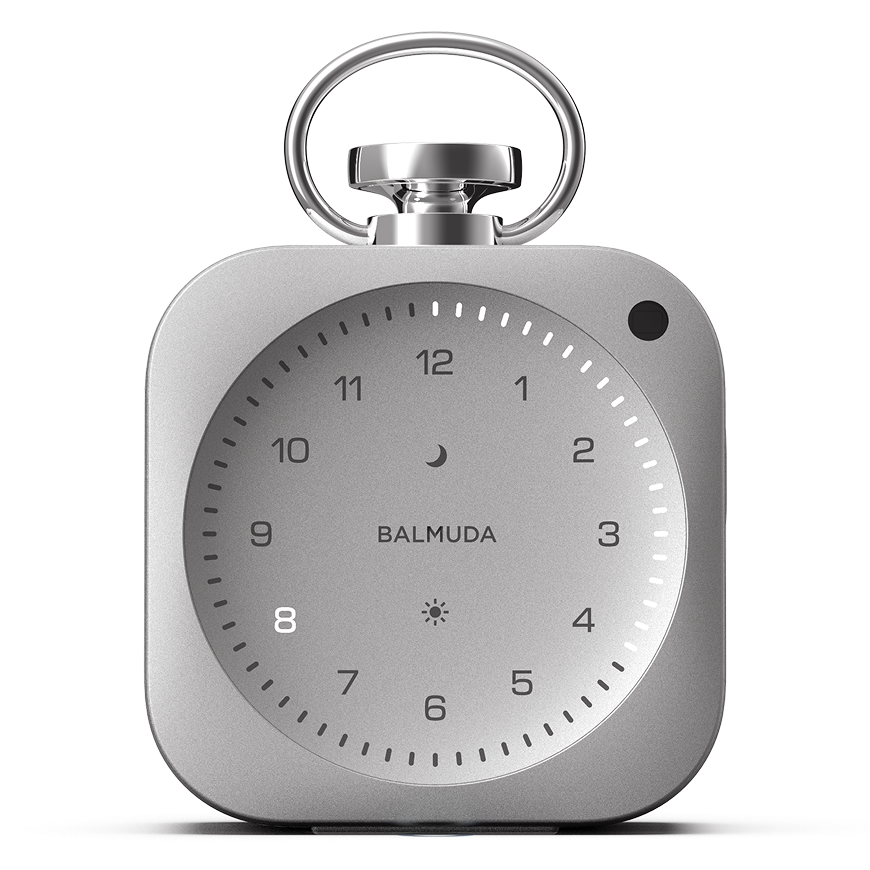


Timer
This timer function can be set up to 60 minutes for studying, work, breaks, etc.
Timer settings
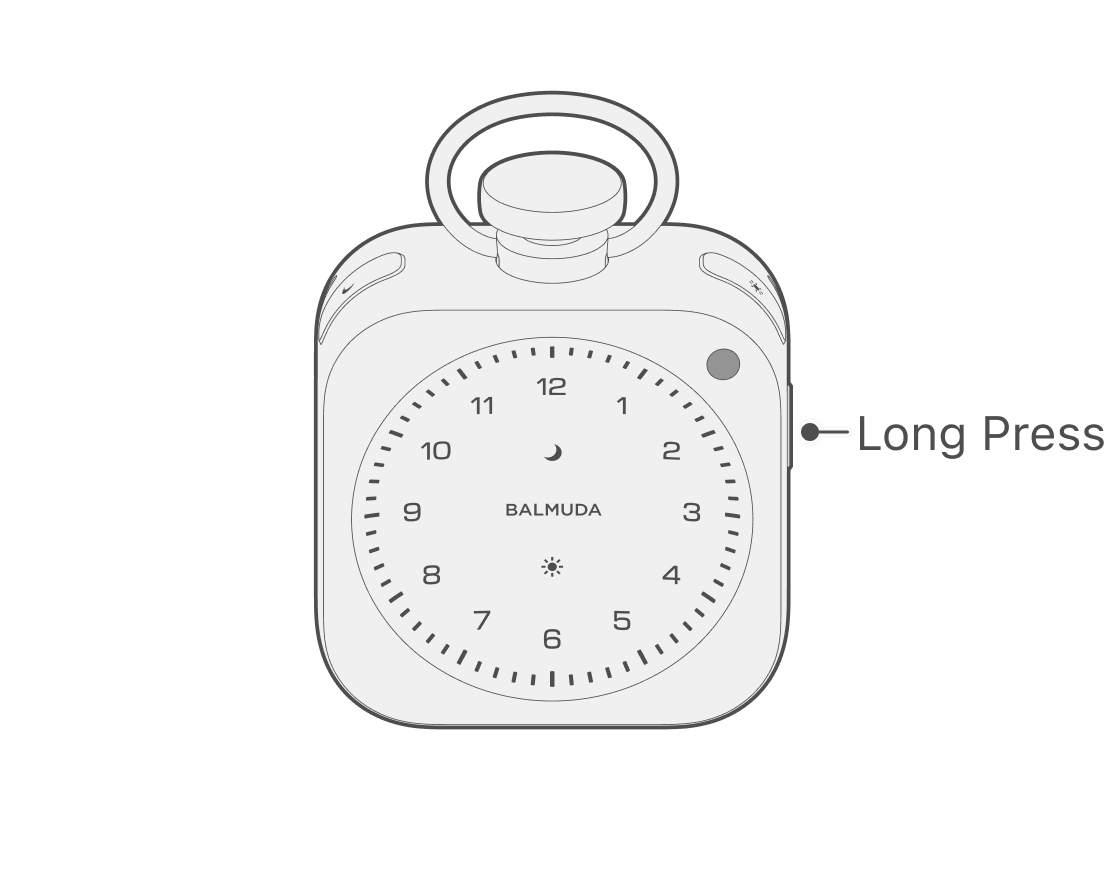
From the clock display, press and hold the Side button to enter the timer Setting mode.
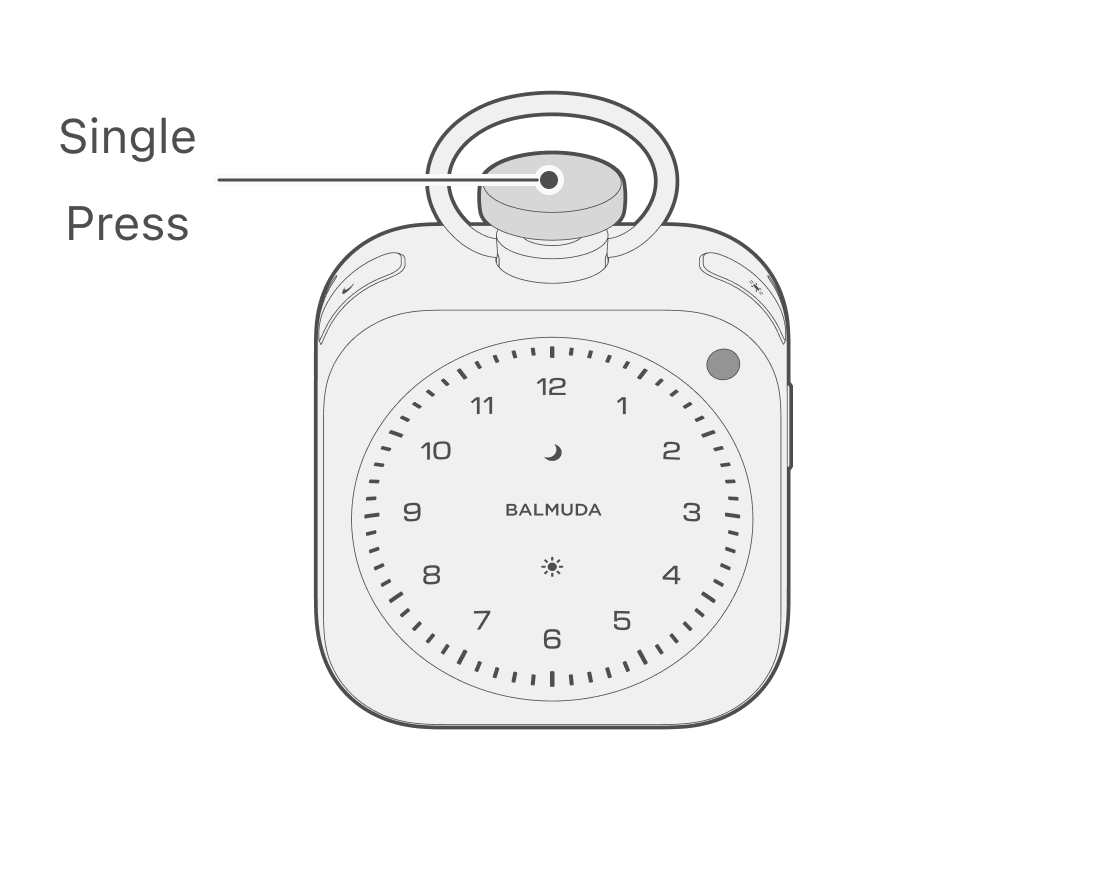
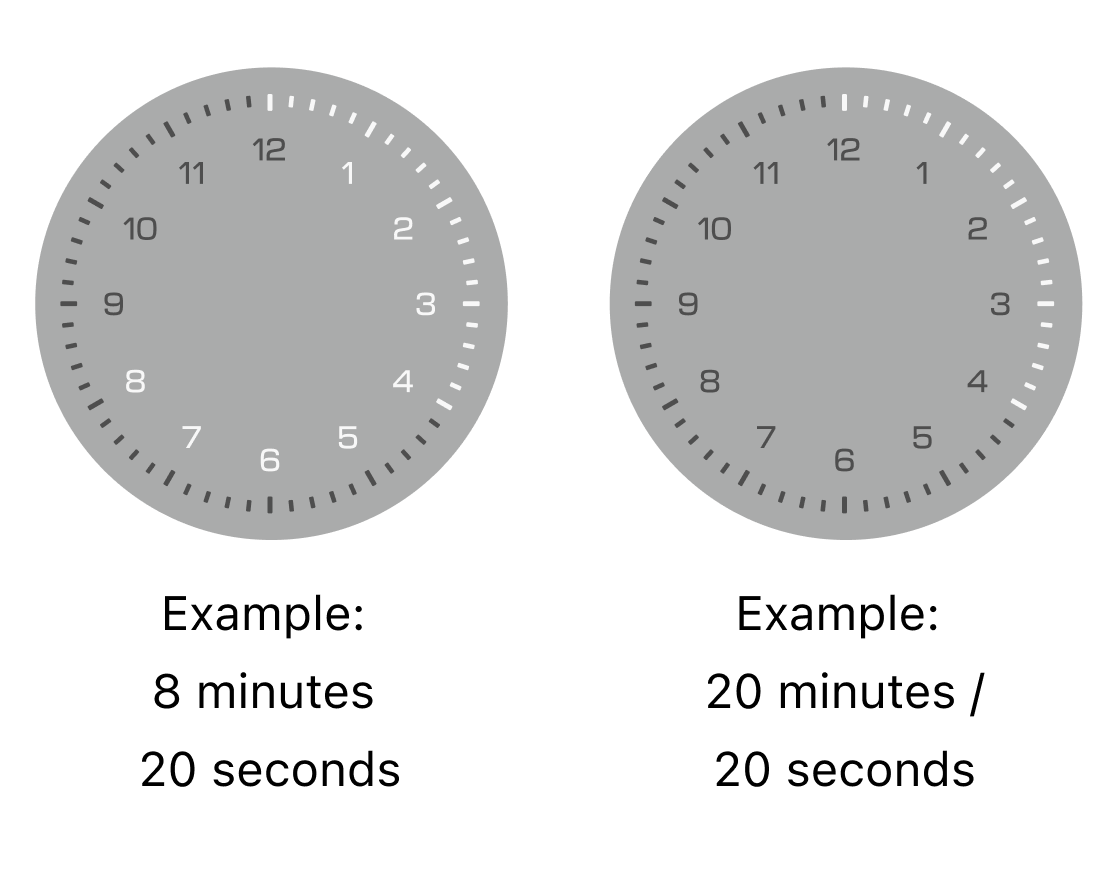
Turn the Crown to select “Minute,” then press the Crown. For settings from 1 to 12 minutes, the Hour LED displays the “Minute,” and you can press the Crown to proceed to the second setting (Step 3). For settings from 13 to 60 minutes, the Minute LED displays the “Minute,” and pressing the Crown starts the Timer with a sound.
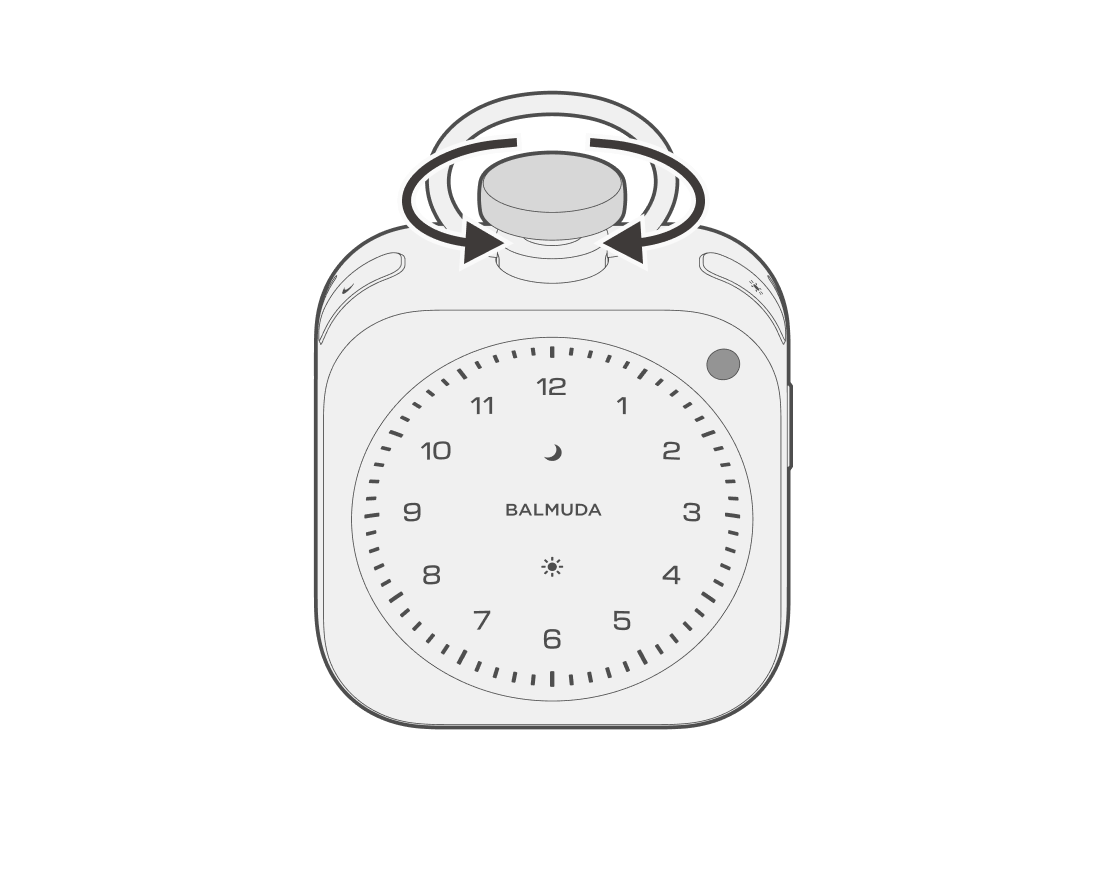
Turn the Crown to select “Second,” then press the Crown to start the Timer with a sound. Seconds increase/decrease in 5-second increments, and you can set them across minutes.
You can set seconds only when you select 1 to 12 minutes in Step 2.
If you want to set it to less than 1 minute, select 1 minute first, then turn the Crown counterclockwise.
Adjust volume
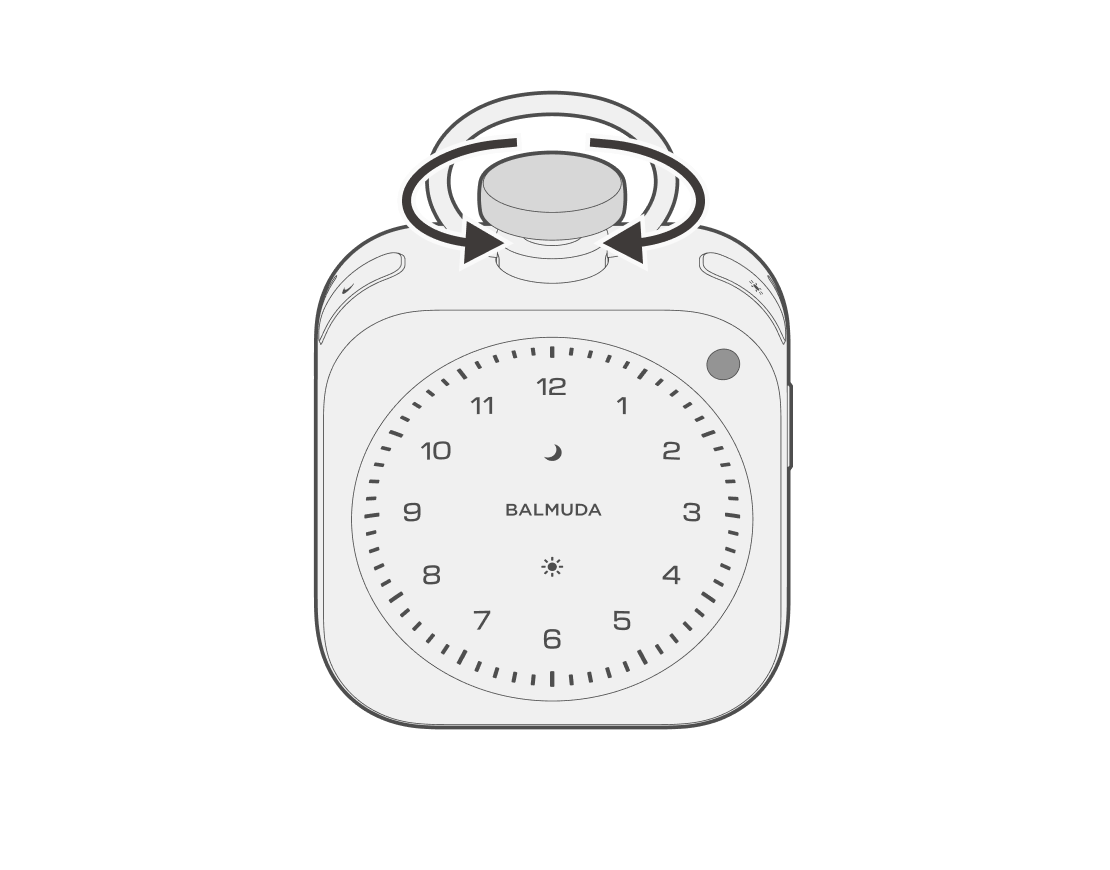
While the Timer is on, sound will play. While it is on, turn the Crown clockwise to increase the volume, or Counterclockwise to decrease the volume.
Ending the Timer
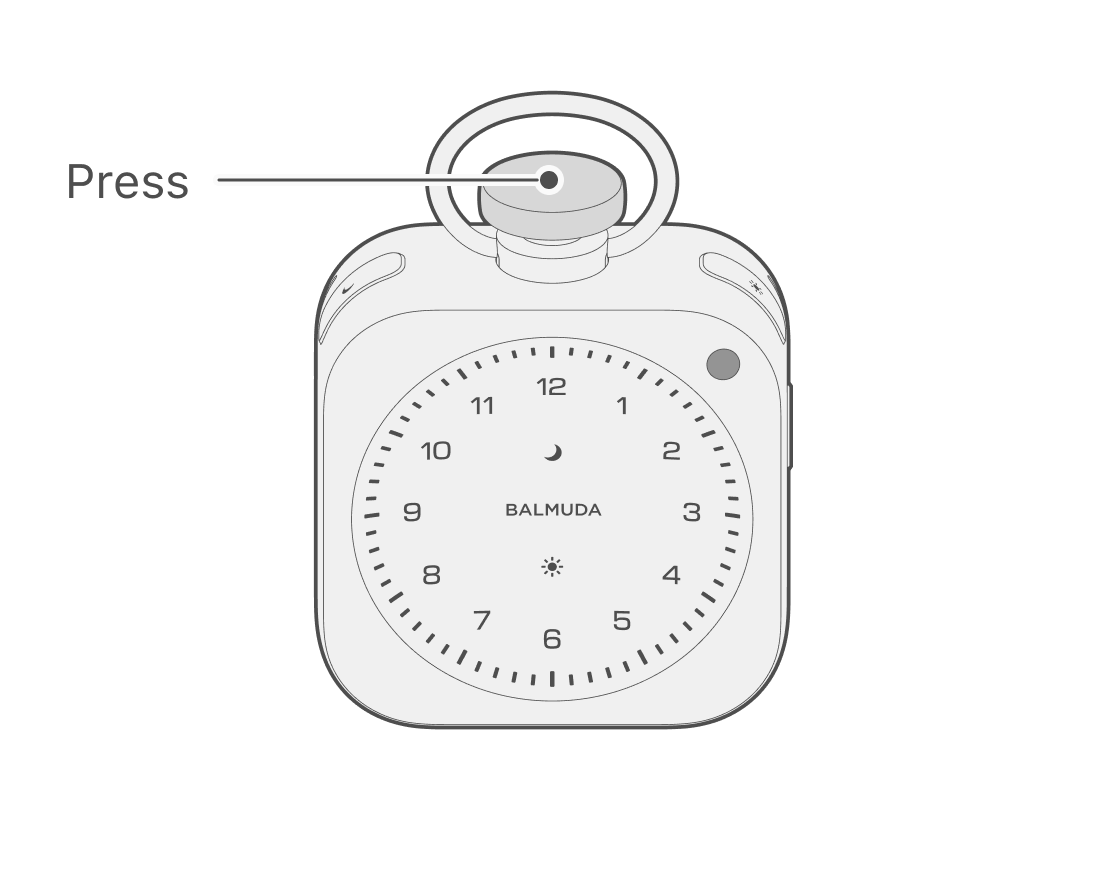
When the set Timer time has elapsed, the clock face will pulse along with a sound. Press the Crown to stop the Timer. After it ends, it switches to the clock display.
Cancelling the Timer
While setting the Timer or the Timer is on, press and hold the Side button to cancel the Timer and switch to the clock display.
Selecting a sound in the App
The Timer sound can be selected only from the App.
On the main screen, tap the Timer sound button to open the sound selection screen.
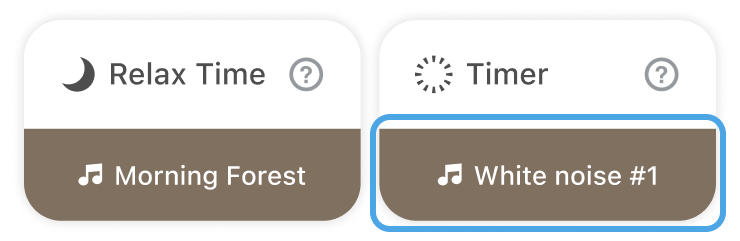
You can select a sound and check it in the App.
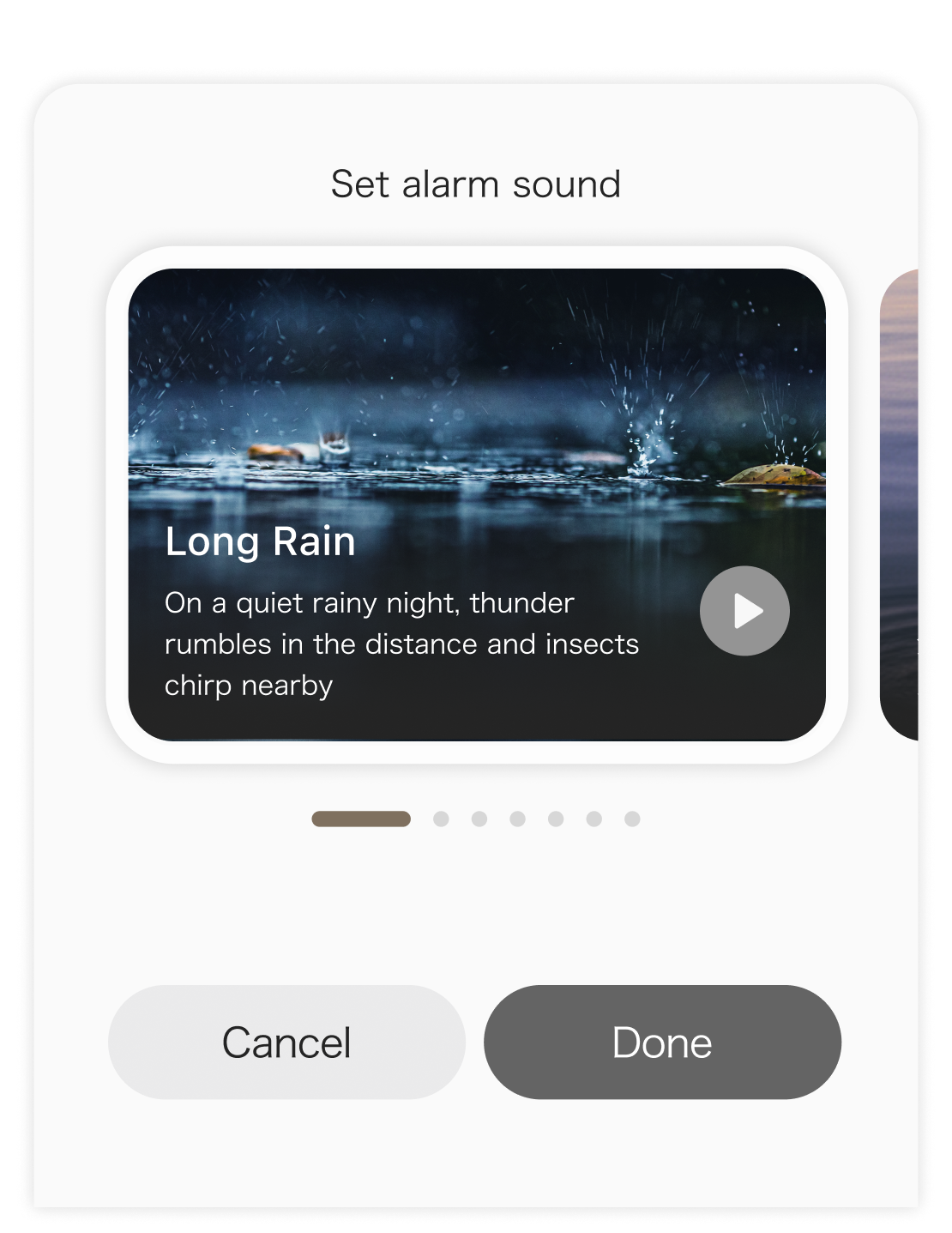
The initial setting is “White Noise #1.”