
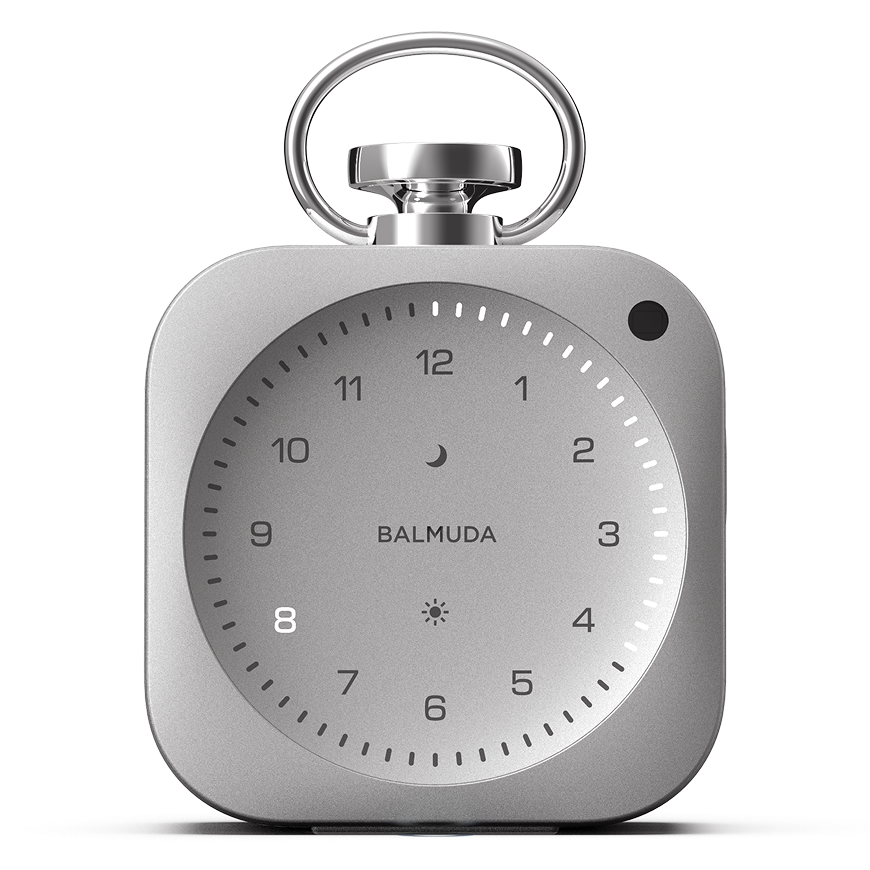


Troubleshooting
main unit issues
The time is incorrect even though it is paired with the App
— Is the App Time setting set to “Manually set on the main unit”?
If you Select “Set automatically” under “Time setting,” you can match the time to your smartphone’s time or to the time in a selected Time zone.
— Is The Clock connected to the App or Wi-Fi?
The Clock’s time adjustment is done via the App over a Bluetooth Connection, or via Wi-Fi.
— Is the Time zone setting correct?
If you have specified a Time zone manually, it may differ from your current location’s Time zone. You can set the Time zone only from the App.
The clock face does not light up
— Is the main unit’s battery level sufficient?
If the battery level is low, the maximum brightness may be limited.
— Is anything blocking the ambient light sensor?
If the ambient light sensor detects that it is dark, the LED brightness will decrease.
No sound
— Is the volume set to zero?
Relax Time, Alarm, and other functions each have independent Volume settings. If there is no sound when there should be, turn the Crown clockwise. You can also adjust each Volume from the settings screen for each function in the App. If you are setting it on the main unit, follow the steps below.
・Relax Time
While the Relax Time function is active, increase the Volume.
・Alarm
While the Alarm sound is on, or while in Alarm Sound preview (press the Sun button twice), increase the volume.
・Other (Timer, Hourly signal, power on/off)
While the Timer/Hourly signal function is active, increase the Volume.
Buttons do not respond
— Is there any dust or debris stuck in the gap around the buttons?
Remove any dust or debris and try operating it again.
Not Charging. The Charging LED does not light up.
— Are you using the recommended USB cable and power supply?
To charge The Clock, you need a USB cable with USB-C (USB Type-C) on both ends and a power adapter or mobile battery that can output 15W (5V3A) or higher from a single port. If charging is possible, inserting the cable makes The Clock beep, the Charging LED will turn on or will be pulsing, and it starts charging.
The main unit is hot
— Are you using it in direct sunlight or in a high-temperature environment?
The main unit is made of aluminum and may become hot in direct sunlight or near heat sources.
— Is it charging?
It may become hot while charging, but this is not a malfunction because it is designed to dissipate internal heat through the entire main unit.
Unable to operate
— Has an error occurred?
If an error occurs in the main unit, all Minute LEDs will pulse, and an error number corresponding to the issue will turn On. Do not resume operation. Record the displayed error number and contact BALMUDA Support Center.
The Hourly signal does not sound
— The Hourly signal will not sound when:
- The Hourly signal is turned off in the App
- “Other volume” is set to zero
- You are configuring alarm settings
- The Relax Time is on
- The Timer is on
- The room is dark
The power may turn off during use
Because there is a high likelihood of a malfunction, please request a repair at BALMUDA Support Center.
The Alarm does not sound at the set time
— Is the volume too low?
In the clock display, press the Sun button twice to preview the Alarm sound. While the sound is playing, turn the Crown to adjust the volume; to confirm, press the Crown once. To change it in the App, adjust the Alarm Volume from the volume setting at the bottom of the main screen.
— Is the time zone correct?
If you set the Alarm in the App, the time will be set according to the Time zone.
— Are AM and PM correct?
Your wake-up time is set based on the 24-hour format.
— Is the Sun LED On?
Press and hold the Sun button, and set the Alarm again.
— If you set it in the app
The app allows you to preset up to three alarm times, but only one selected time will actually sound. Please check if the desired time is selected.
For more details, please check the alarm settings in the app.
The power turns off while Charging
— Are you using a supported adapter or charger?
Charging requires a USB power supply capable of delivering 15 W (5 V, 3 A) or more. Please use a USB cable with USB-C (USB Type-C) on both ends, and an adapter or charger with a single port that can output 15 W or higher.
Cannot change the display style of Light Hour
— Are you pressing the Crown twice slowly?
If the interval between the two presses is too long, it may not respond.
The device is unresponsive during use
If the device becomes unresponsive during use and does not respond to normal operation, follow the steps below to force restart it.
*If the device does not power on, this procedure cannot be used.
- If a USB cable is connected, disconnect it.
- Press and hold the Moon button, Sun button, Crown, and Side button at the same time for about 10 seconds.
- The display will turn off.
- Connect the USB cable.
- Press and hold the Moon button and Sun button to turn the device back on.
Software Update Cannot Be Started or Completed
If you cannot update The Clock device software, follow the steps below in order.
■ Steps
- Update the BALMUDA Connect app to the latest version.
- Make sure Wi-Fi setup has been completed and The Clock is connected to Wi-Fi.
- Connect a USB-C to USB-C cable to a power adapter or charger that can output 15 W or more from a single port. * Keep the cable connected until the update is complete. Do not disconnect it during the update.
- Make sure The Clock has at least half of its battery remaining.
- Press and hold the Moon and Sun buttons on The Clock to restart the device.
- Run the software update.
- If the device is frozen, such as when it does not respond to operation or the screen has stopped, force restart the device, then try updating the device software again.
For how to force restart, see “The device is unresponsive during use.”
Trouble operating the App
Cannot operate from the App. “Could not connect” is displayed.
— Are the main unit and your smartphone close to each other?
Bluetooth may not connect if the devices are too distant. Bring them closer together.
— Are you using the App on multiple smartphones at the same time?
The Clock can be operated only from the one paired smartphone. If you want to use it on a different smartphone, close the App once, then launch the App on the other smartphone.
The Clock is not in the device list
— Did you delete it by mistake?
Please register it again using “Add a product.”
If “This device is already registered.” appears when registering your product.
This message appears when the product has already been registered to another BALMUDA Connect account.
First, check the account you are currently signed in with.
[How to check]
Check the following on the Account screen in the app.
■ Email address
■ Sign in method (Google / Apple / email address)
* “Sign in method” is displayed in app Ver. 1.2.2 or later. If it is not displayed, update the app to the latest version.
BALMUDA Connect has three sign-in methods: “Continue with Google,” “Continue with Apple,” and “Sign in with email address.”
Even if you use the same email address, a different sign-in method is managed as a separate account.
If you are signed in with a sign-in method different from the one used when registering the product, the product will not appear and this message will be displayed.
Try signing in with an email address and sign-in method you may have used previously.
If the issue is not resolved, contact Customer Support.