
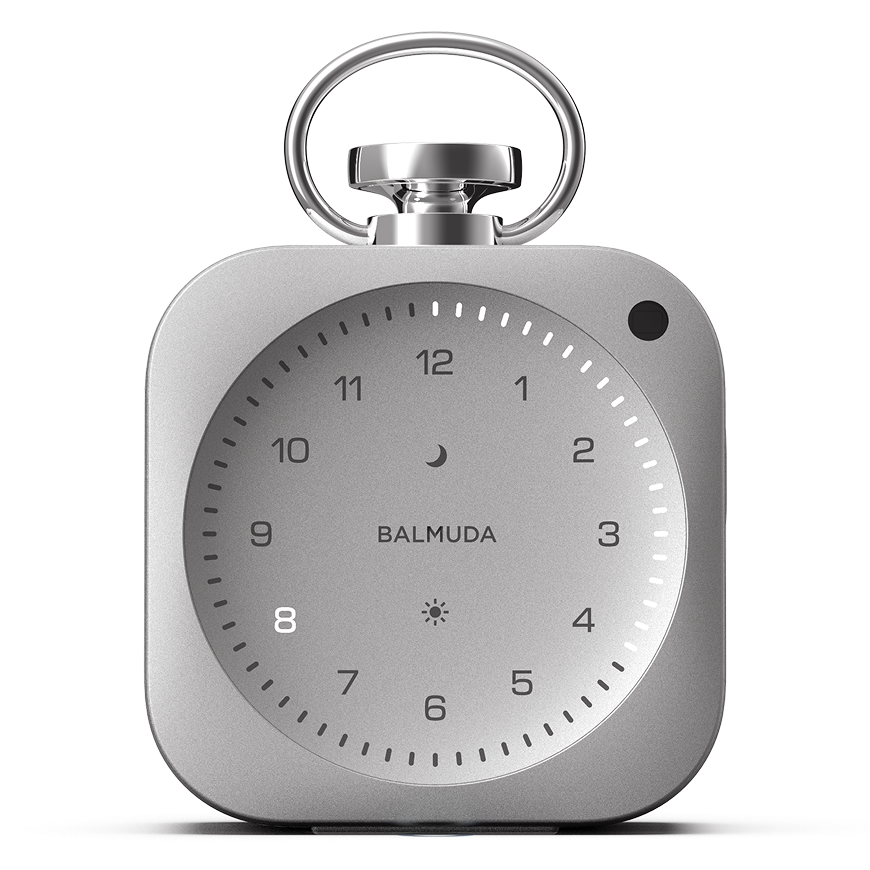


The Clock Re-registration and Software Update Procedure
This section explains the steps for changing the Wi-Fi settings of The Clock and updating the device software under the following conditions:
– App version 1.1.5 or lower
– Device software version 1.0.10
You can update the app from the App Store or Google Play.
Step 1: Unregister the product
From the product list in the app, select the product you want to delete, then choose “Device Information” at the bottom of the screen.
Tap “Delete Product” within “Device Information” to unlink it.
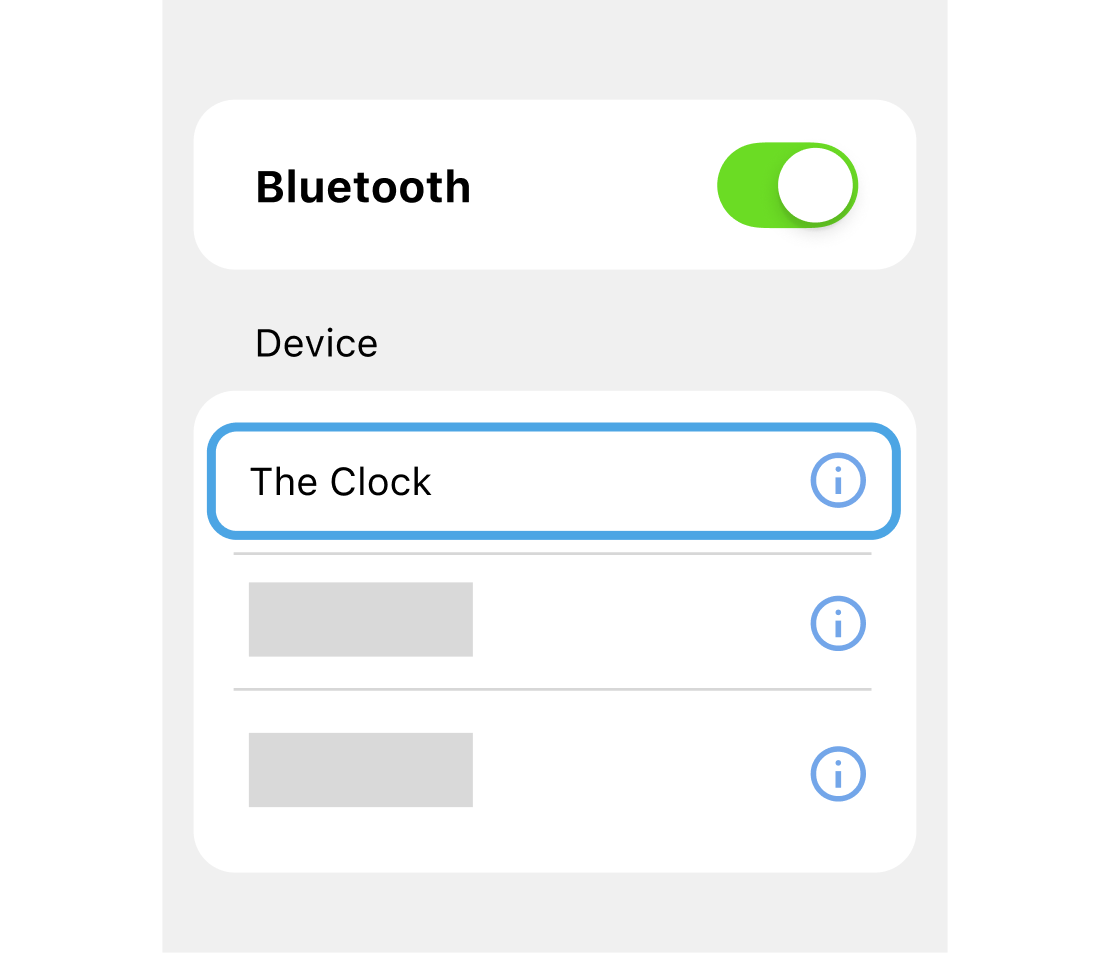
Step 2: Unlink “The Clock” in Bluetooth settings
On your smartphone’s Bluetooth settings screen, select “The Clock” and unregister it.
Step 3: Add the product again from the app
- In the app’s product list screen, tap “Add Product.”
- With The Clock powered off, press and hold the side button to enter pairing mode.
- Follow the app instructions to connect via Bluetooth. Once connected, a message will appear: “Bluetooth connection complete. Proceeding to Wi-Fi settings.”
Step 4: Set up Wi-Fi during product registration
Follow the app instructions to connect to Wi-Fi.
If you skip Wi-Fi setup, you will need to register the product again. Please do not skip and be sure to set up Wi-Fi.
Step 5: Perform software update
- From the product list, select The Clock and tap “Device Information.”
- Tap “Software” and perform the software update.
To perform a software update, the following conditions must be met:
– BALMUDA Connect app and The Clock must be linked
– Wi-Fi connection settings must be completed in the BALMUDA Connect app
– You must be in an environment where you can connect to the configured Wi-Fi
– The Clock main unit has more than half of its battery charge remaining
– The Clock must be connected to a USB power cable