


Clock Display and Settings
About The Clock Display
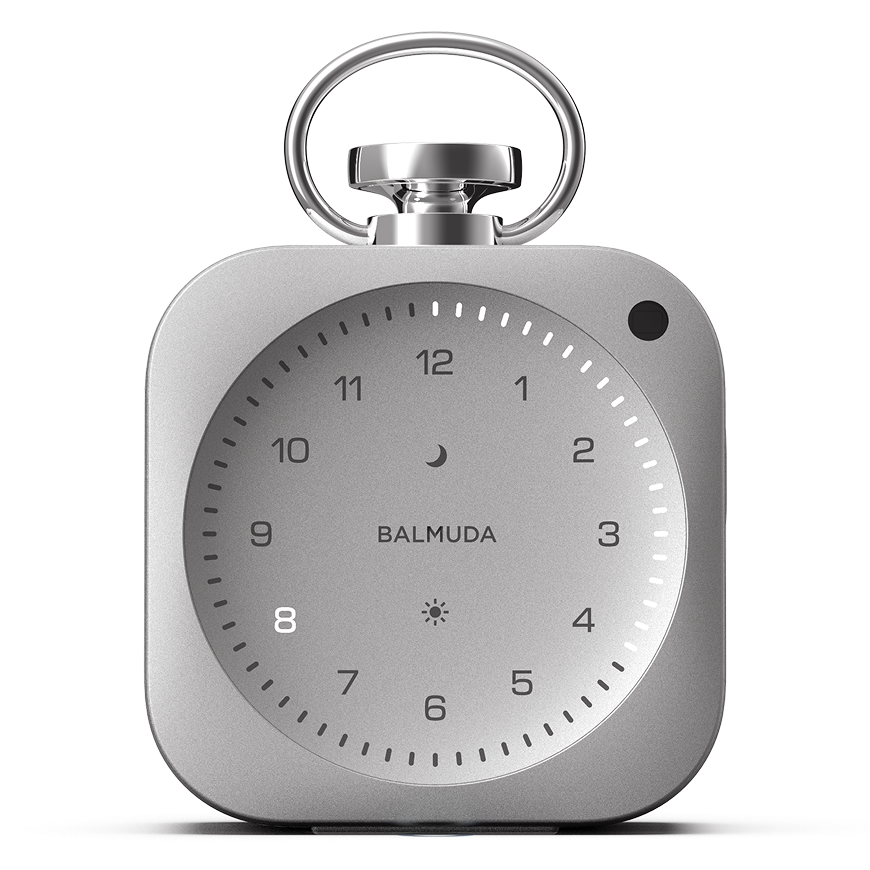
The current “Hour” is indicated by the Hour LED, and the current “Minute” is indicated by the Minute LED. On The Clock, this LED-based clock display is called Light Hour.
Time display (Light Hour) style
You can choose between two Light Hour display styles: “Amount (default)” and “Simple.” You can change the display style from the main unit and the App.
Amount (default)
In this style, the Minute LEDs light up from the 12 o’clock position on the Hour LED to the current time.
Simple
In this style, only the Minute LEDs for the current time light up.
Show/Hide the Second hand
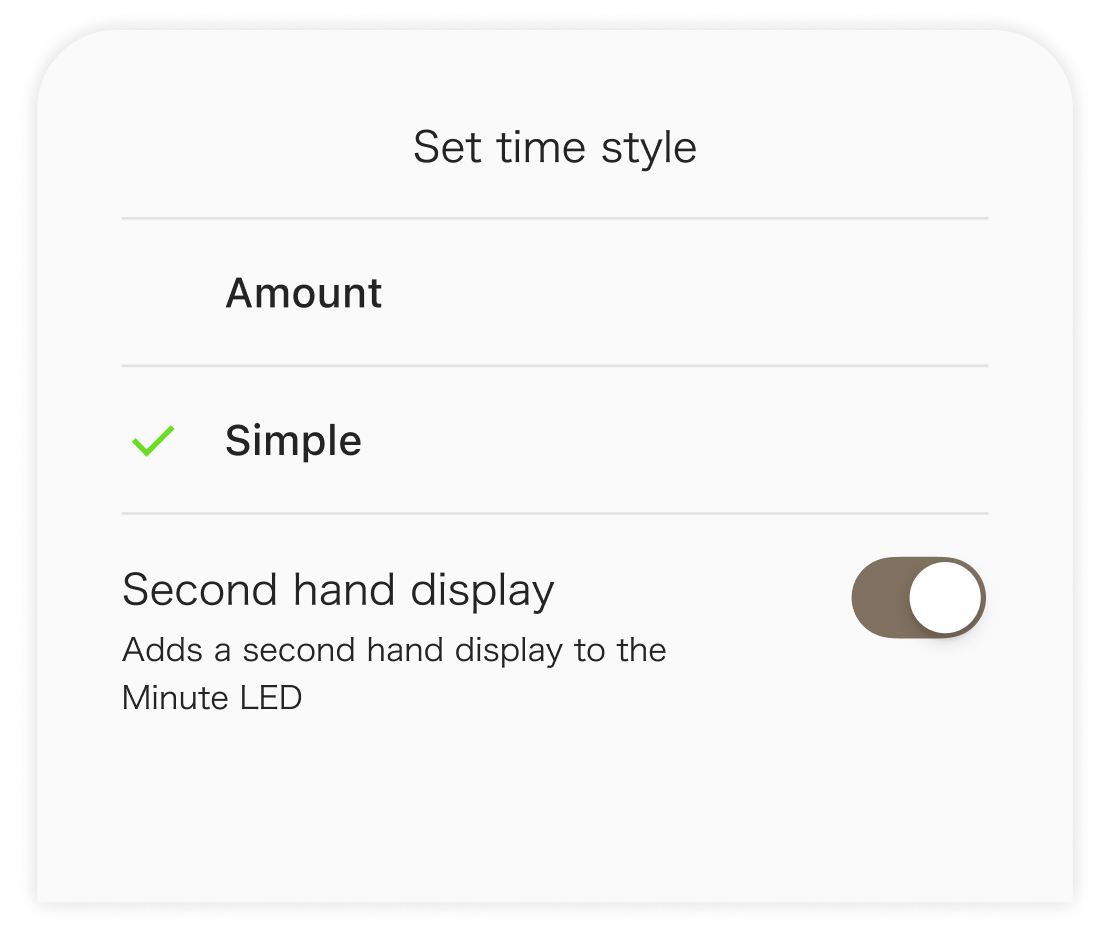
Only in the App, you can switch the second hand display on/off. *Default: On
Brightness adjustment
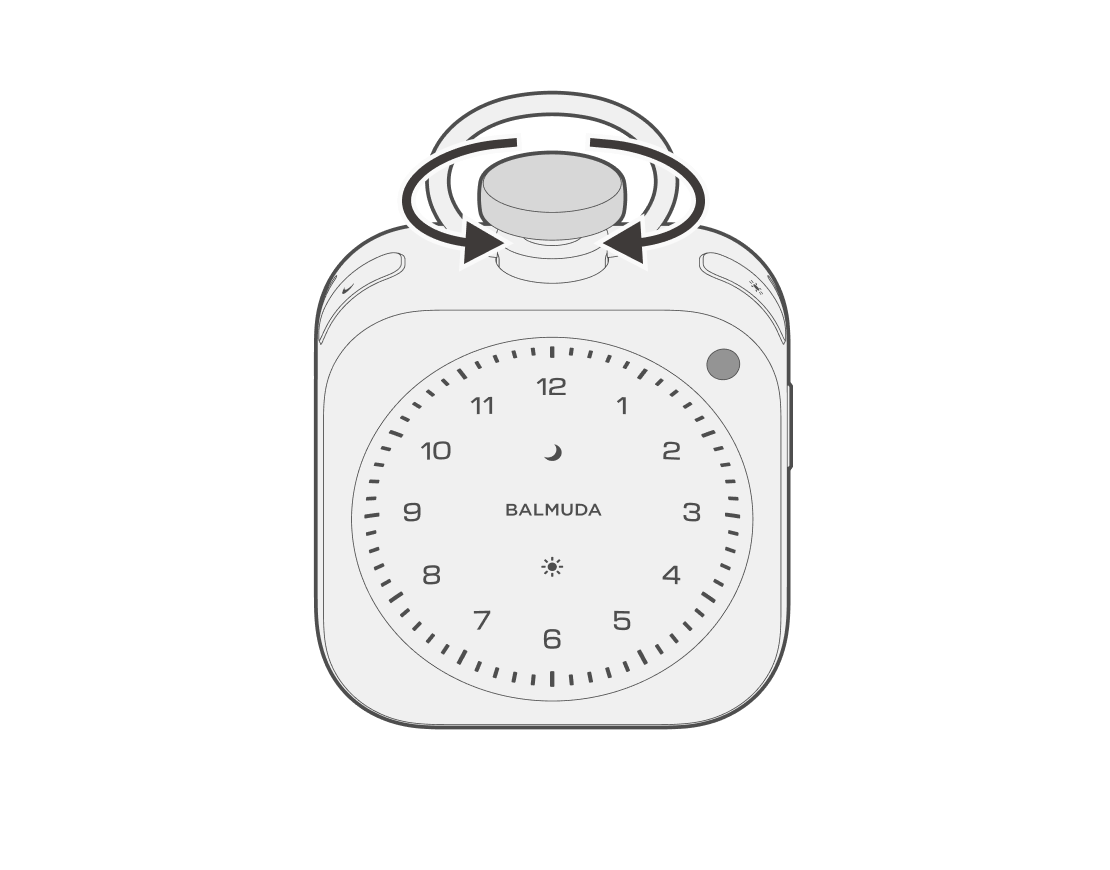
In the clock display state, rotating the Crown clockwise makes the clock display brighter, and rotating it counterclockwise makes the clock display dimmer.
Changing the Light Hour style
Operation on the main unit
In the clock display state, you can switch the Light Hour Style by double click the Crown.
Operation in the App
In the App, you can configure the Light Hour Style and turn the second display on/off.
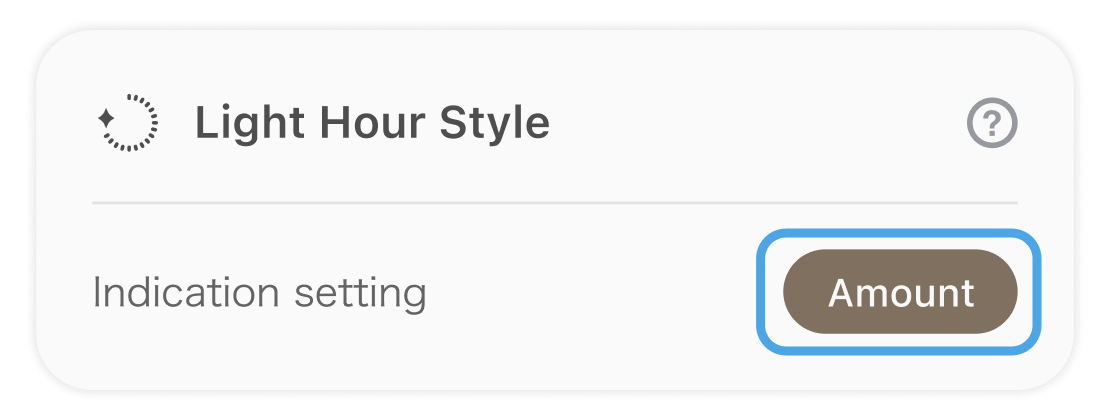
Tap the “Light Hour style” button (Amount or Simple) on the main screen.
You can select a style.
Setting the time on the main unit
On the main unit, press and hold the Moon button, Sun button, and Crown (all three) at the same time to enter Time setting mode. In the order of “Hour” → “Minutes”, turn the Crown to select them, and press the Crown to confirm the settings. While setting the time, the Moon / Sun LED will pulse slowly at the same time.
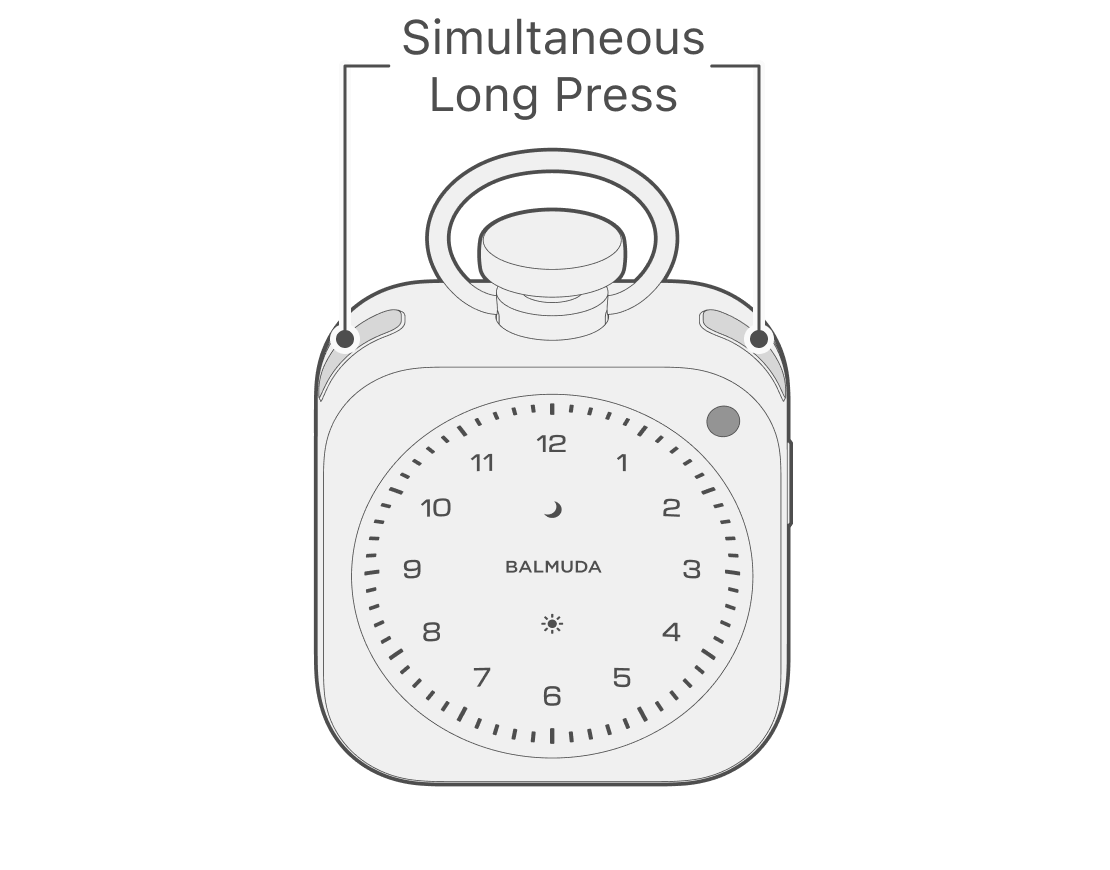
In Time setting, set “Hour” first, then “Minute.” When setting “Hour,” the selected number blinks; rotate the Crown to select, then press the Crown to Confirm.
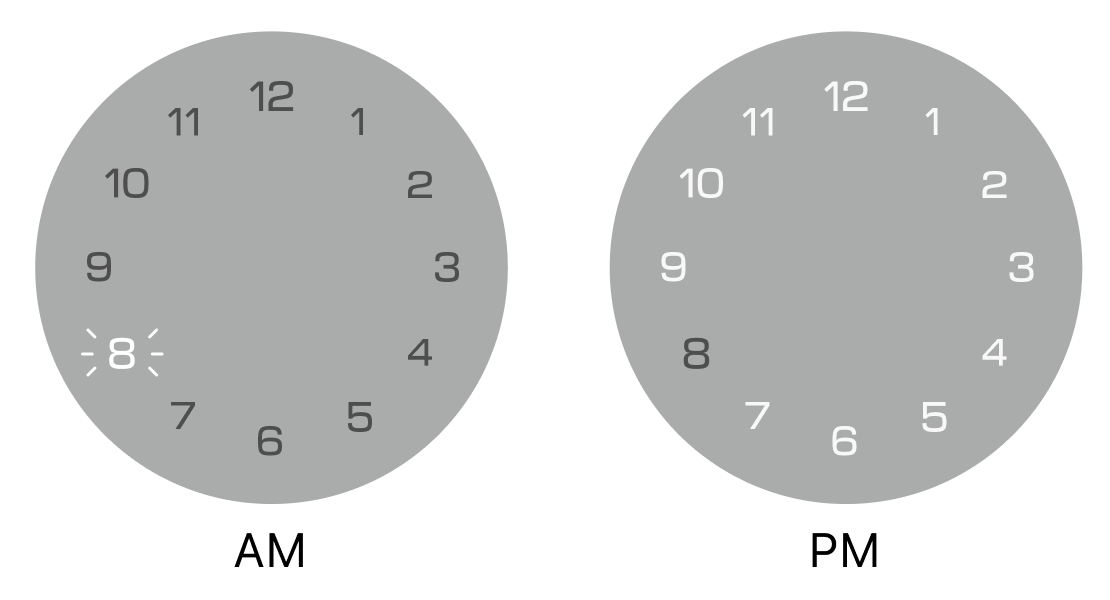
In AM, only the selected number blinks and the other numbers are Off. In PM, only the selected number blinks and all other numbers are On.
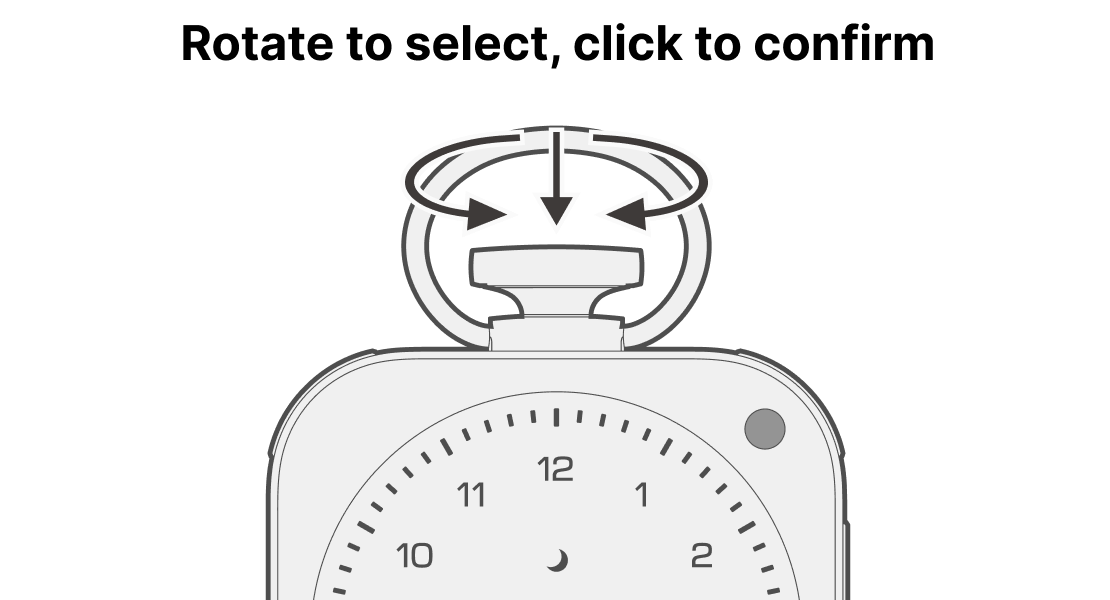
After setting the Hour and Minute, press the Crown; the entire display will blink and Time setting is complete.
If you do not pair with the App, the time on the main unit may drift over time. If you want to always keep the correct time, please use it paired with the App.
Hourly signal
This is an Hourly signal emitted once per Hour through motion and sound.
Adjust volume
While the Hourly signal is On, turning the Crown clockwise increases the volume, and turning it Counterclockwise decreases the volume.
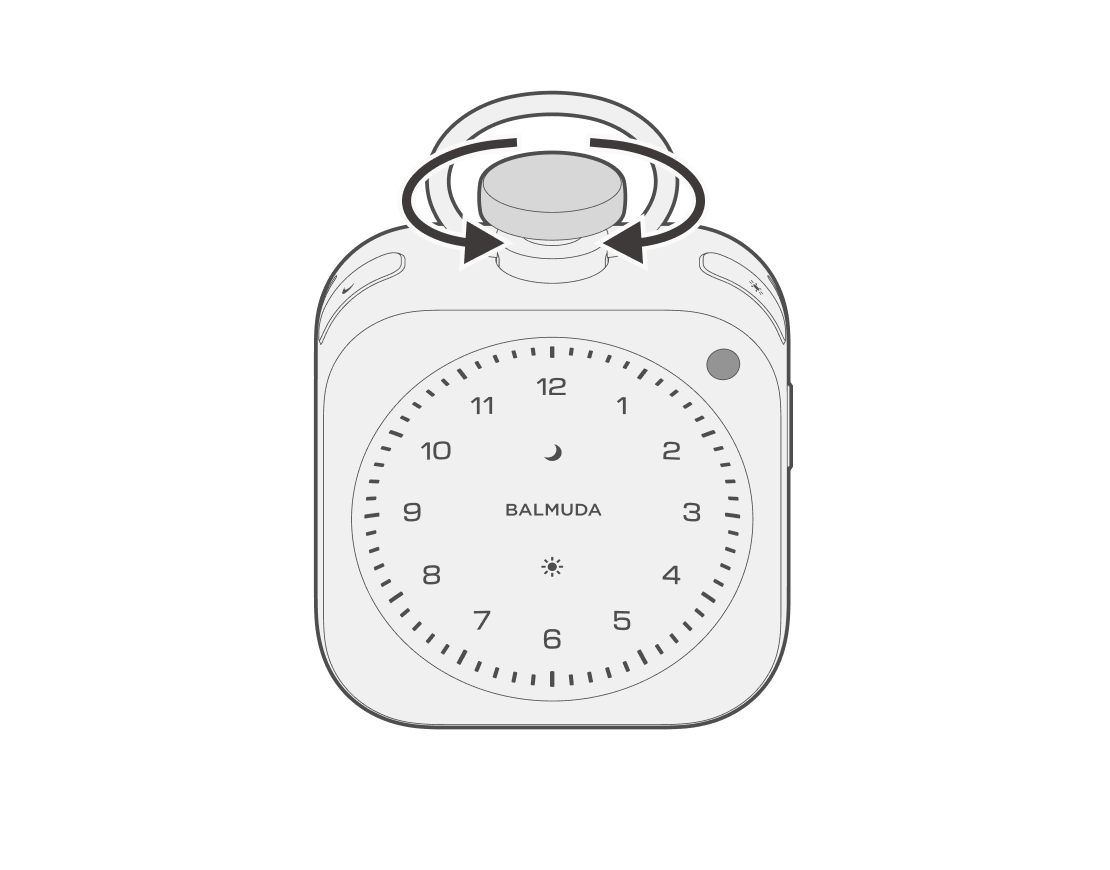
Mute
During the Hourly signal On, you can mute the sound by pressing the Crown once.
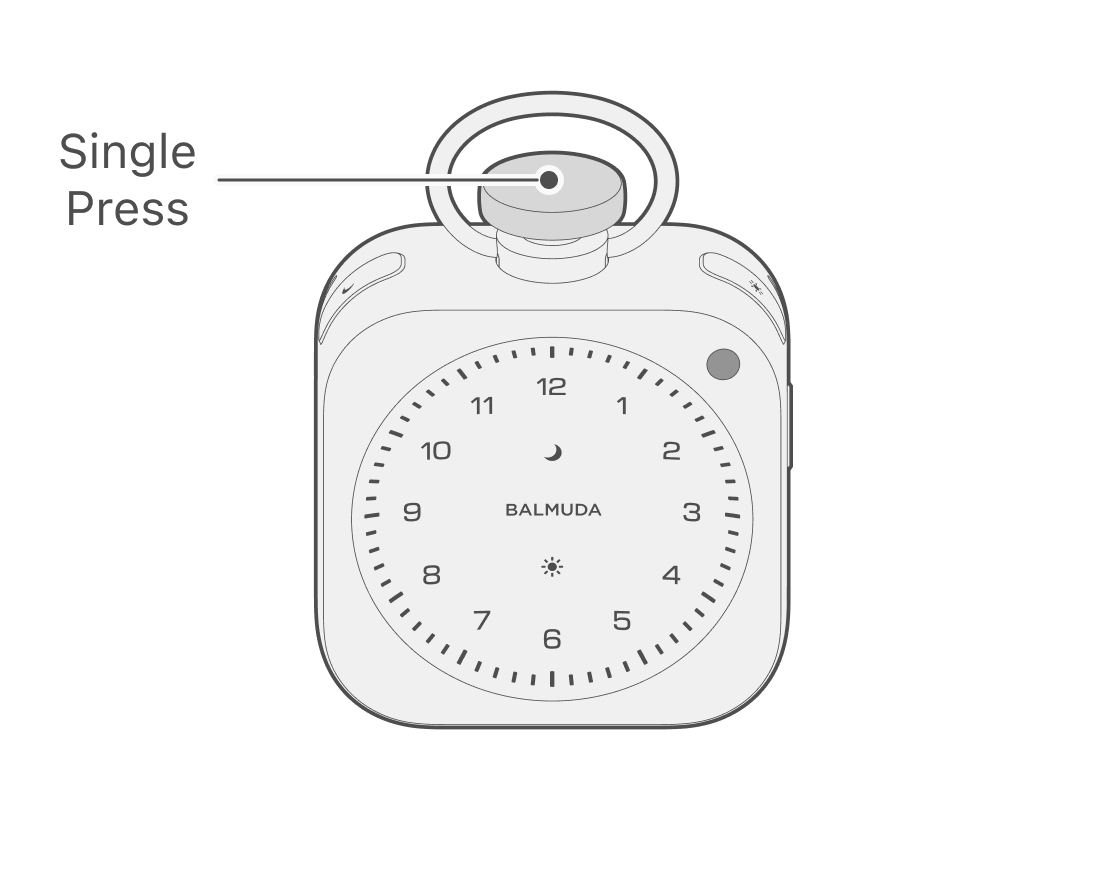
Auto turning off the Hourly Signal
The Hourly signal is automatically turned off in the following situations:
- The top-of-hour notification is turned off in the app
- “Other volume” is set to zero
- An alarm is set
- Relax Time is in use
- Timer is in use
- The room is dark, such as when you are sleeping
Setting the Hourly signal from the App
You can only turn the Hourly signal on/off and select sounds from the App.
To toggle the Hourly signal on/off, tap the “Hourly signal display” toggle.
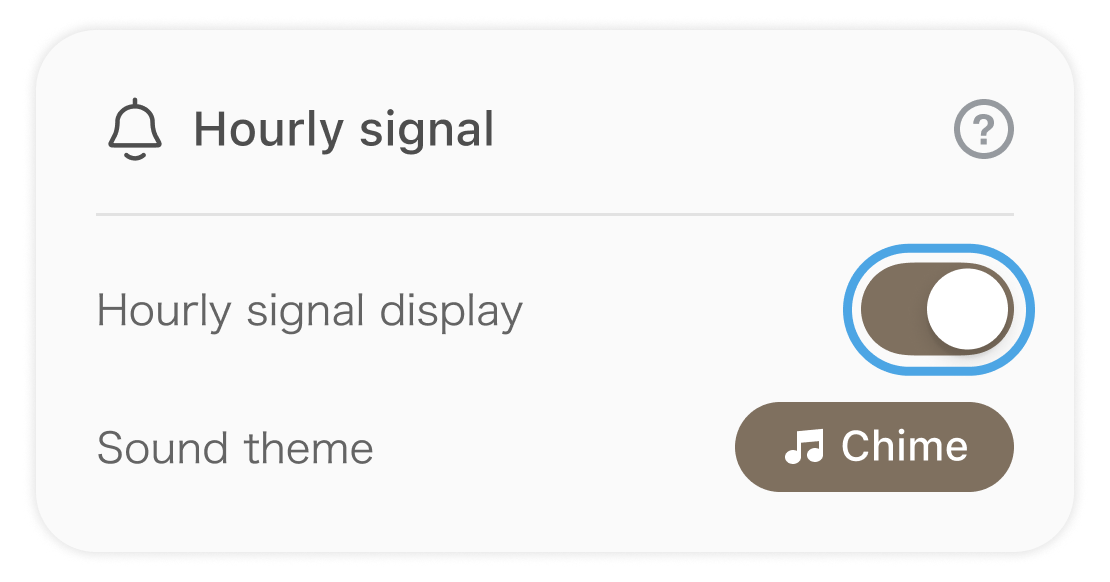
Tap the “Sound theme” button to display the sound selection screen. You can select a sound and use Sound preview in the App.
The default settings are “Hourly signal: On” and “Sound theme: Chime”.