

New Feature: Night Routine
A new feature to help you build better sleep habits.

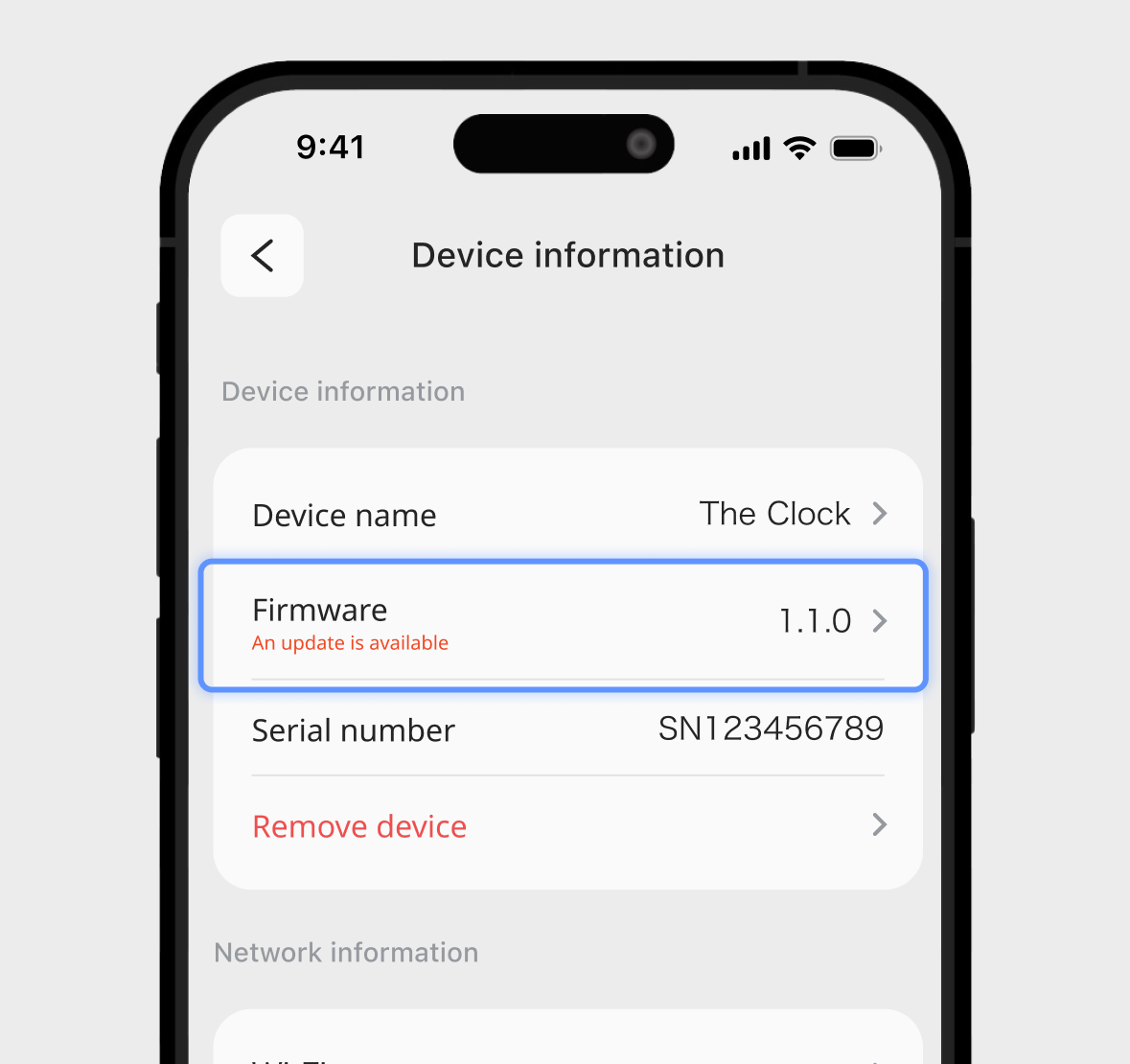
To use this feature, update the app and the software on The Clock.
If the feature does not appear in the app, update both the app and device software to the latest version.
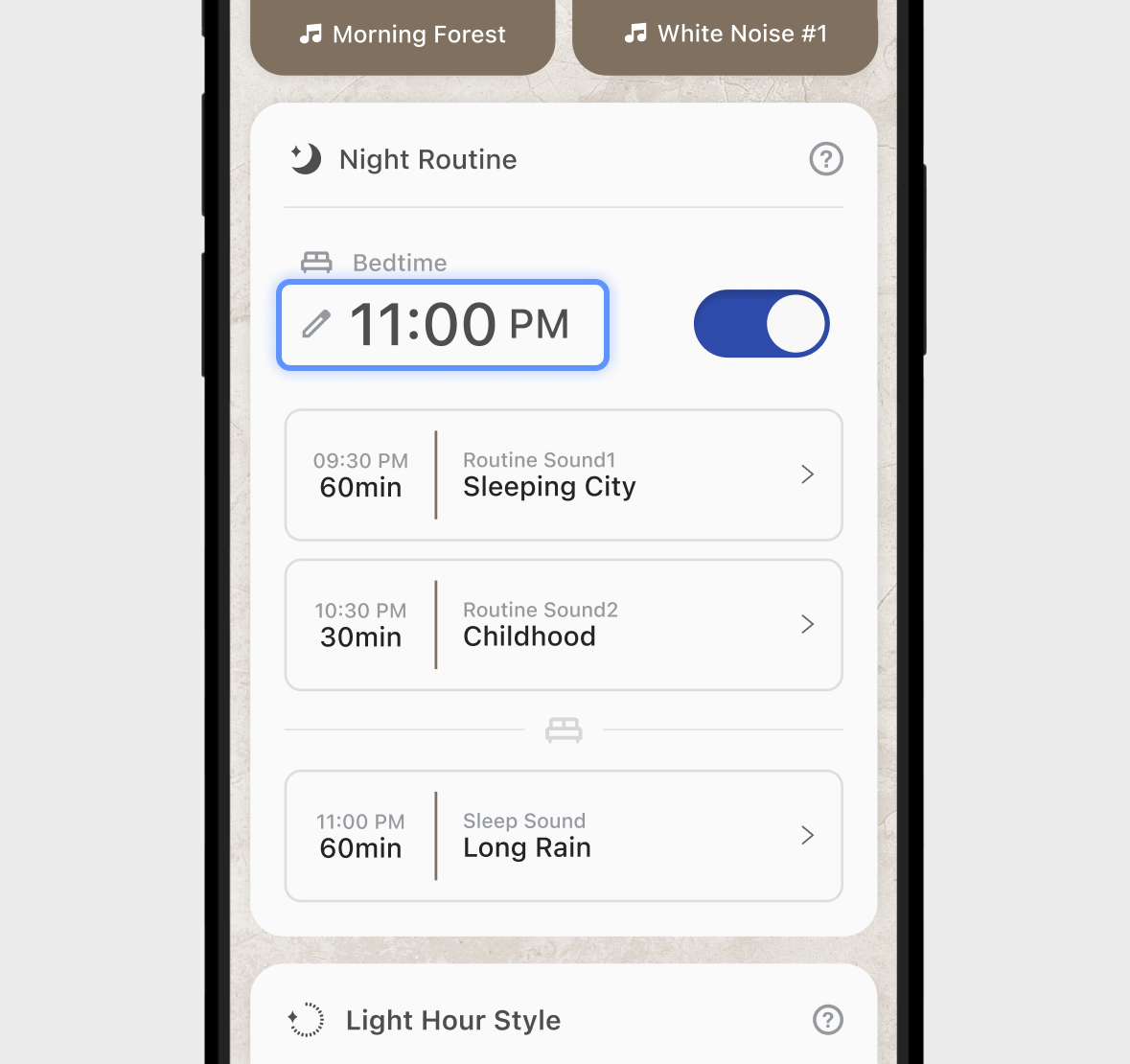
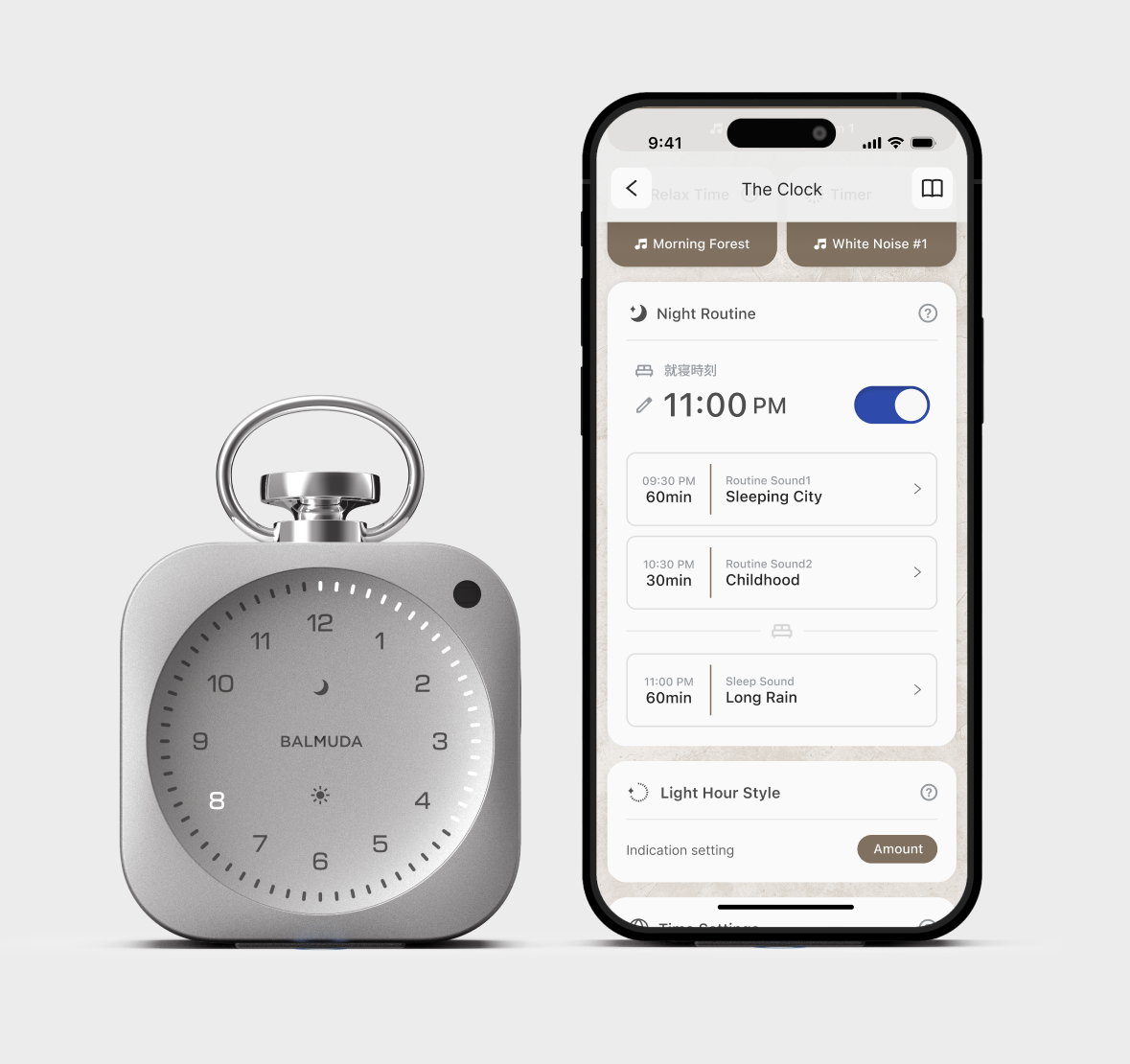
Tap the toggle on the right to turn Night Routine on or off. Blue means on; gray means off.
Sound selection, playback duration, and the Light Hour Style displayed during playback can only be changed in the app.
On the main screen, tap the button shown below to go to the settings screen.
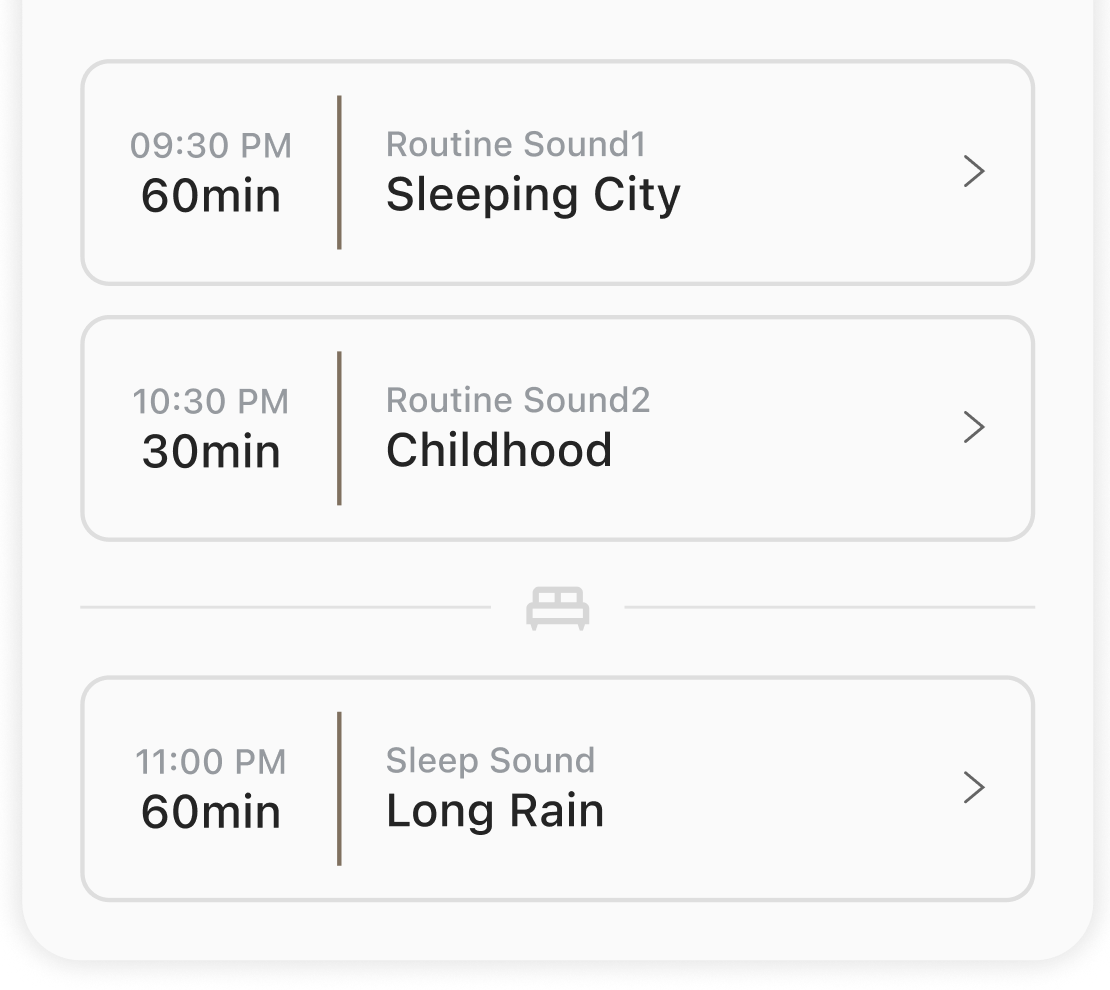
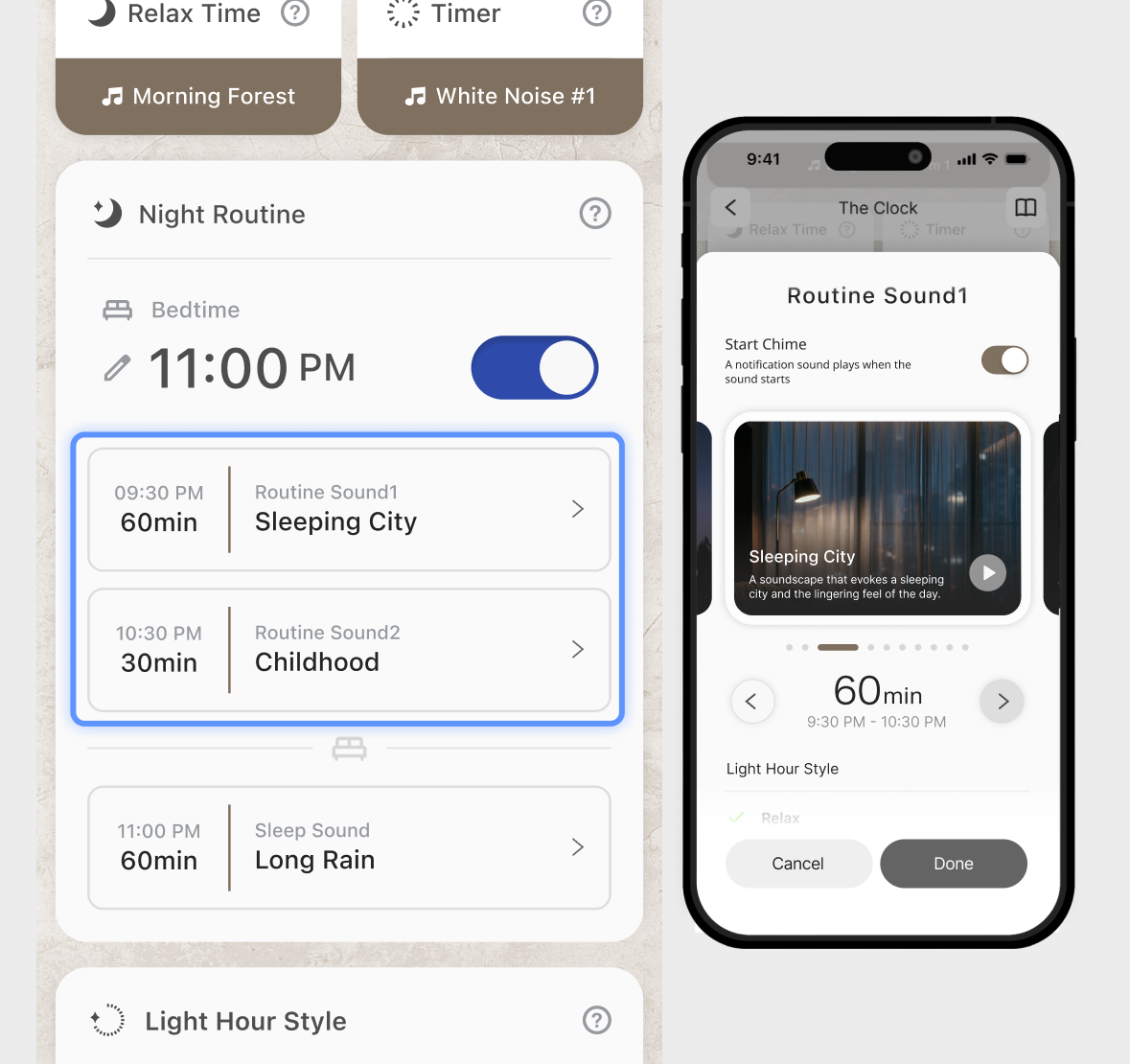
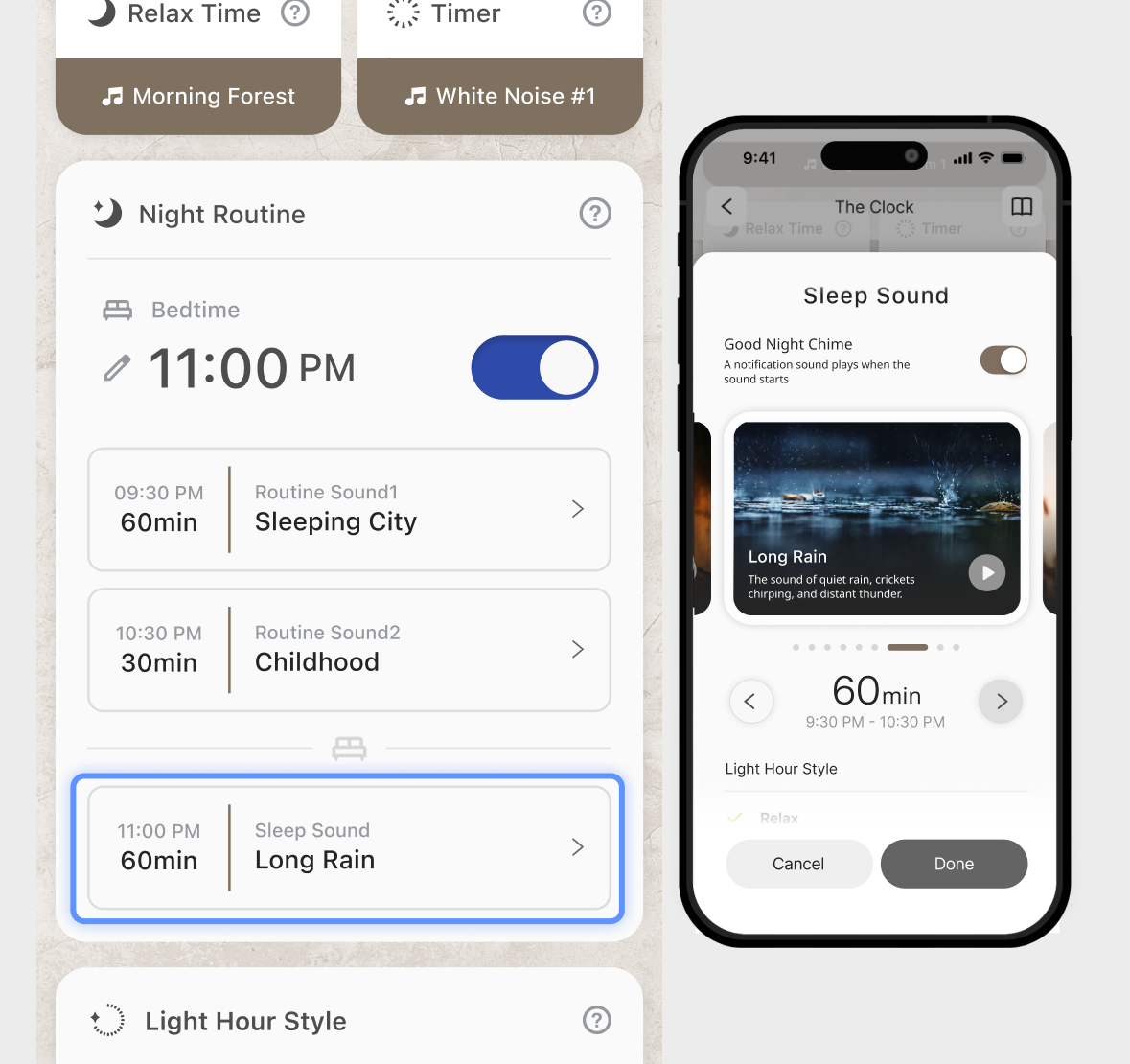
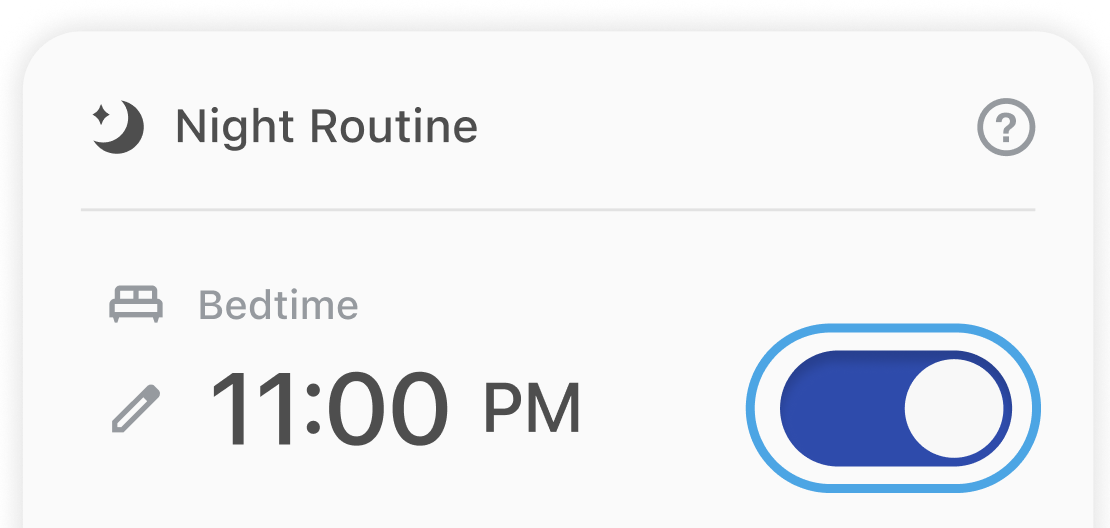
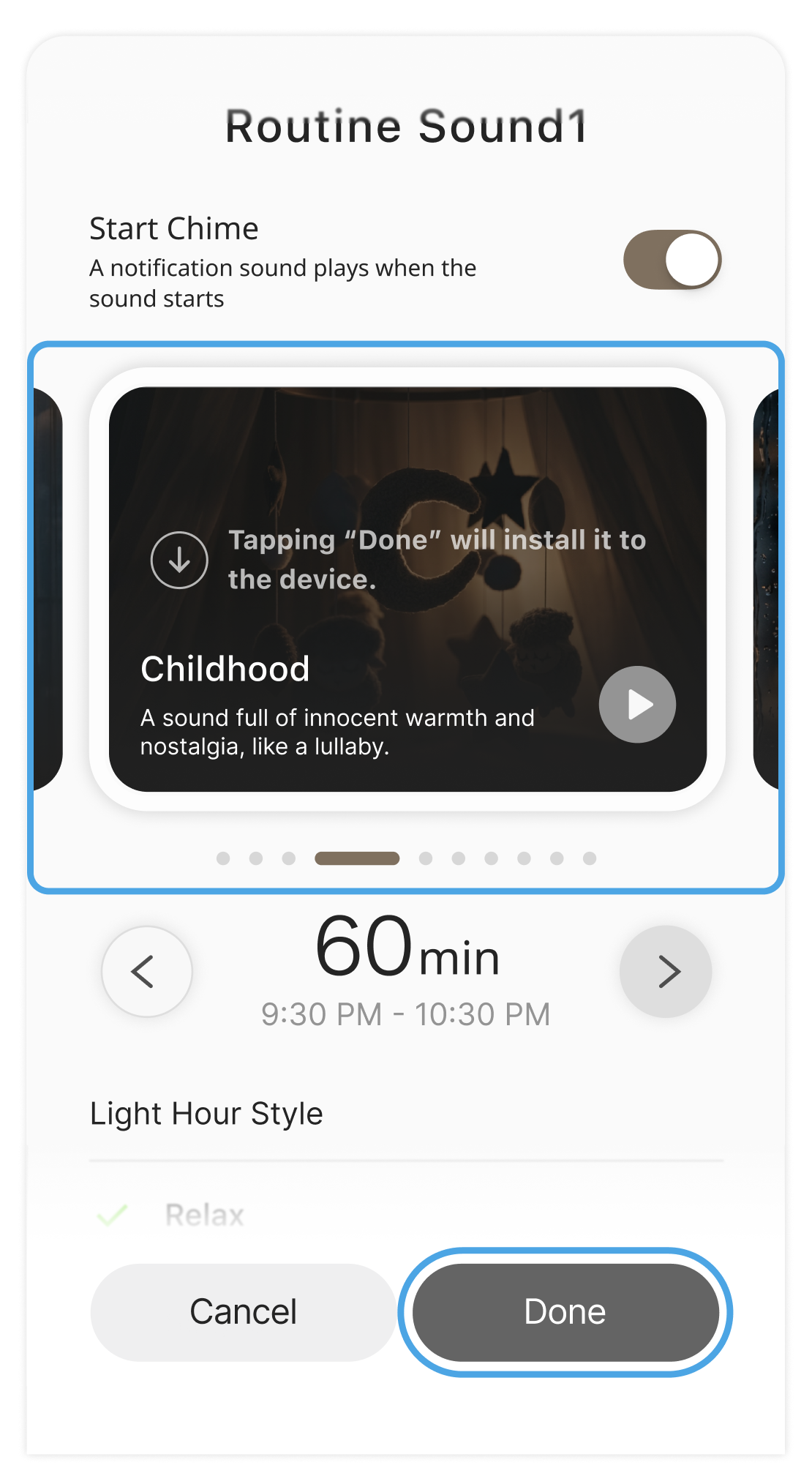
Set the sound and playback duration.
Slide to select the sound you want, then tap Done.
Use the left and right buttons to set the playback duration.
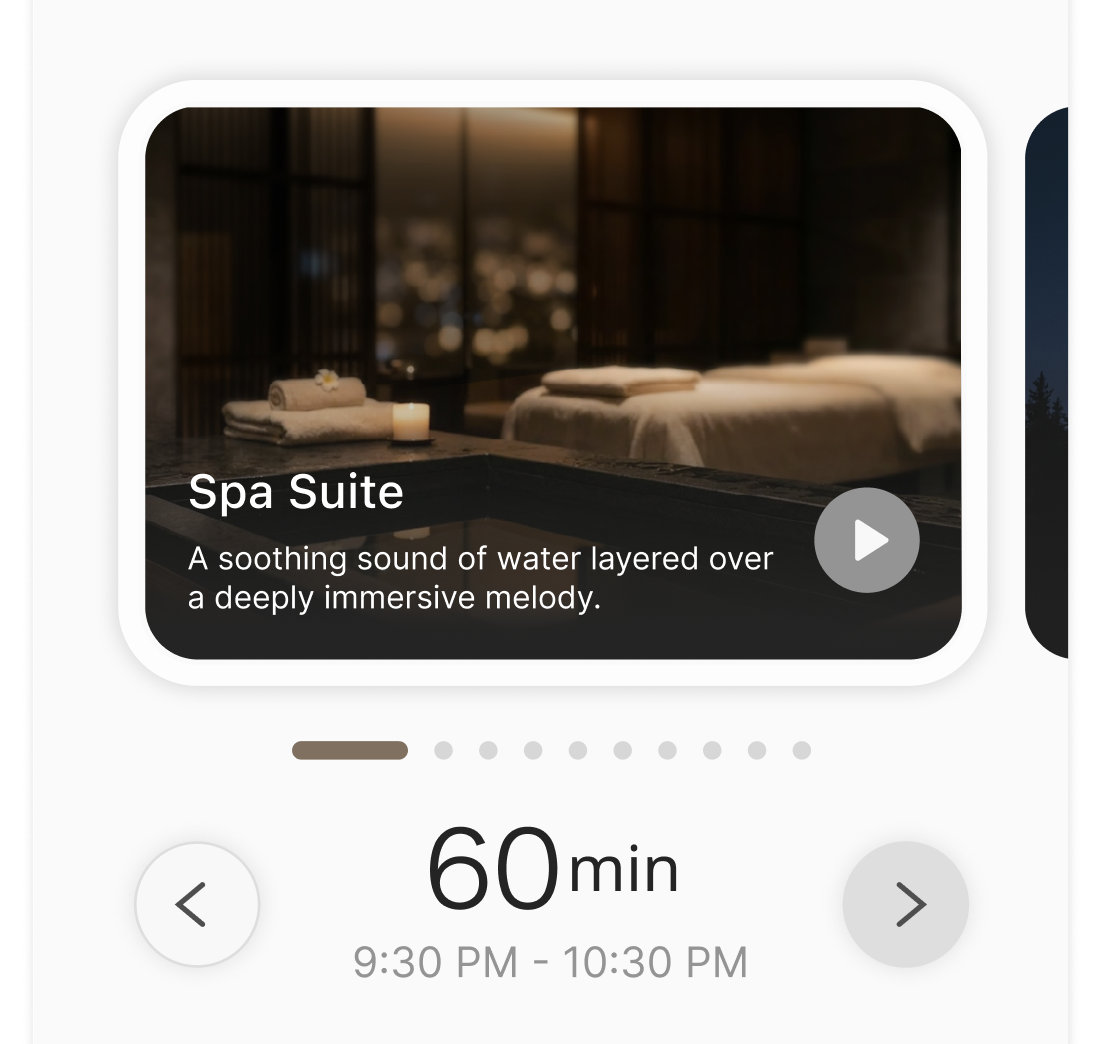
If you want to select a new sound, it must be installed first. Select the sound you want to install, then tap the “Done” button to start the installation.
Click here for detailed instructions.
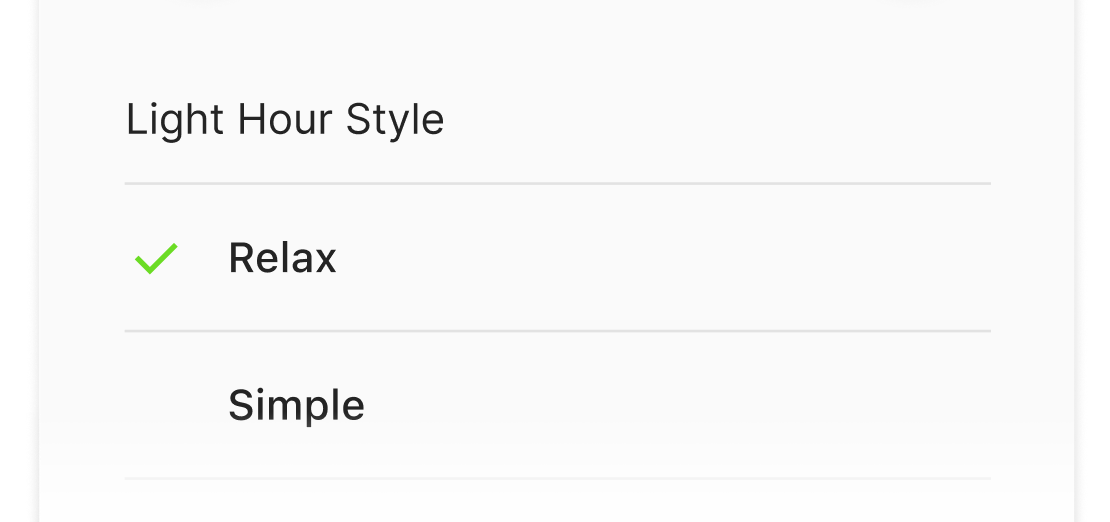
You can choose either Relax or Simple for the Light Hour Style.
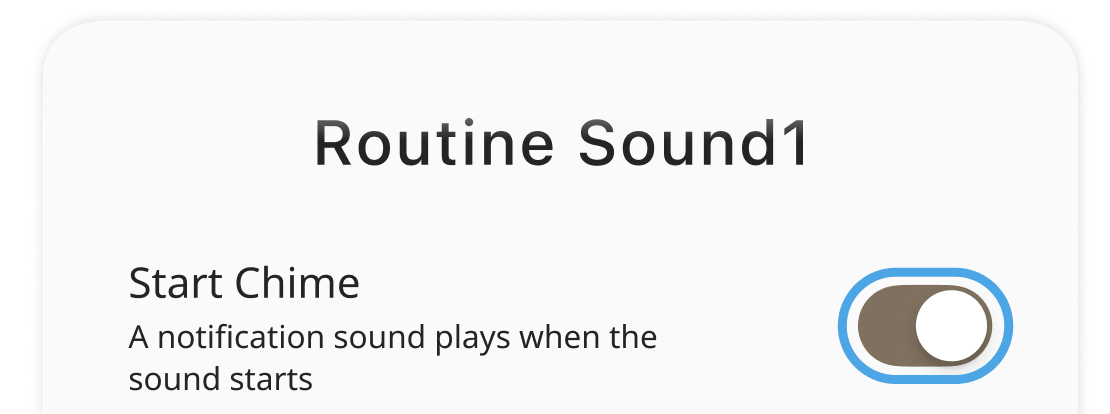
The chimes that announce the start of each phase are called Start Chime, Second Chime, and Good Night Chime. They can only be turned on or off in the app.
*Default setting: On
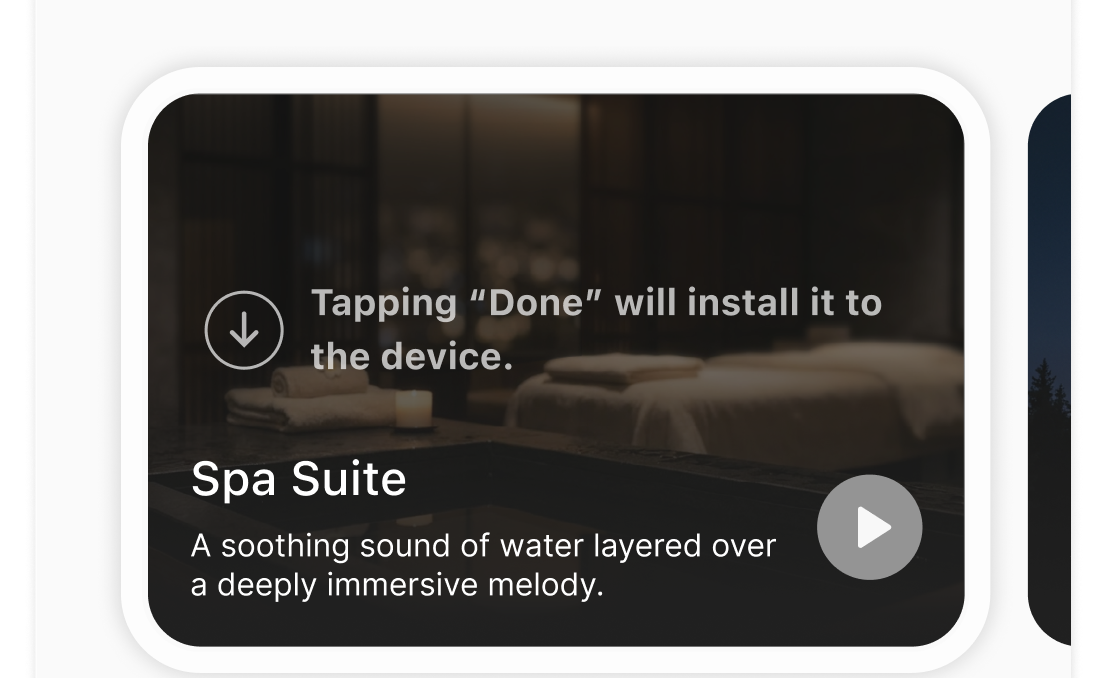
New sounds added for Night Routine must be installed. The following text appears for sounds that require installation.
To install a sound, all of the following conditions must be met.
・Wi-Fi setup in the BALMUDA Connect app is complete.
・You are in an environment where the configured Wi-Fi network is available.
・The Clock has at least 50% battery remaining.
・The Clock is connected to a USB power cable.
Depending on your network environment and the content, installation may take about 3–15 minutes.
Select the sound you want to install, then tap Done.
Follow the dialog to complete installation.
On The Clock, you can set or turn off the Night Routine bedtime.
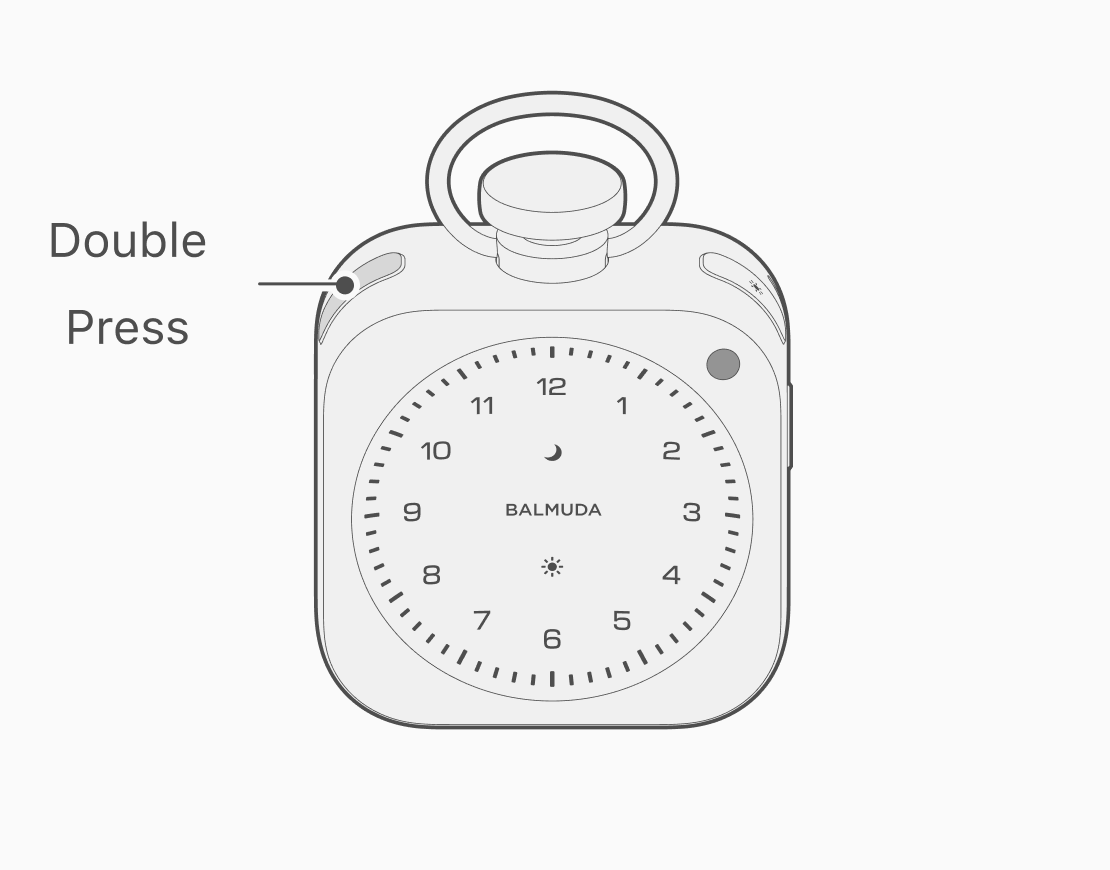
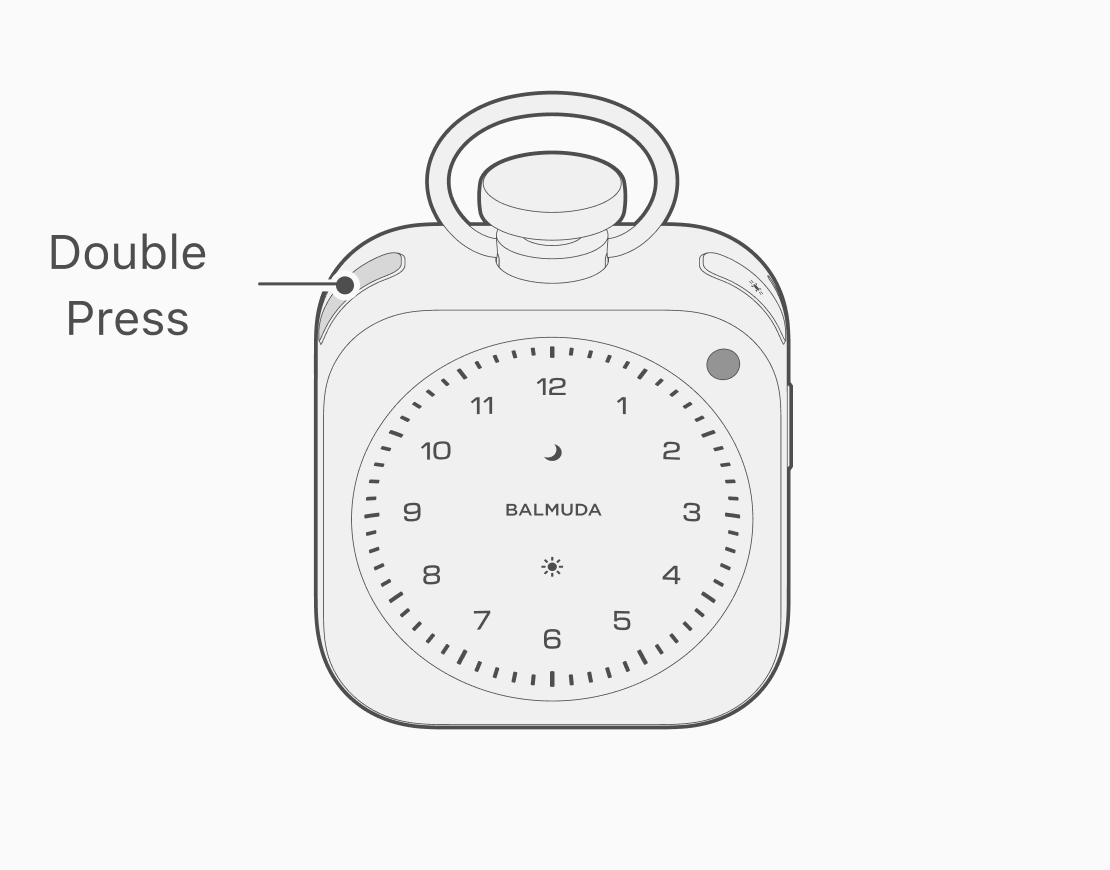
While the clock is displayed, press the Moon button twice to enter Night Routine setup mode.
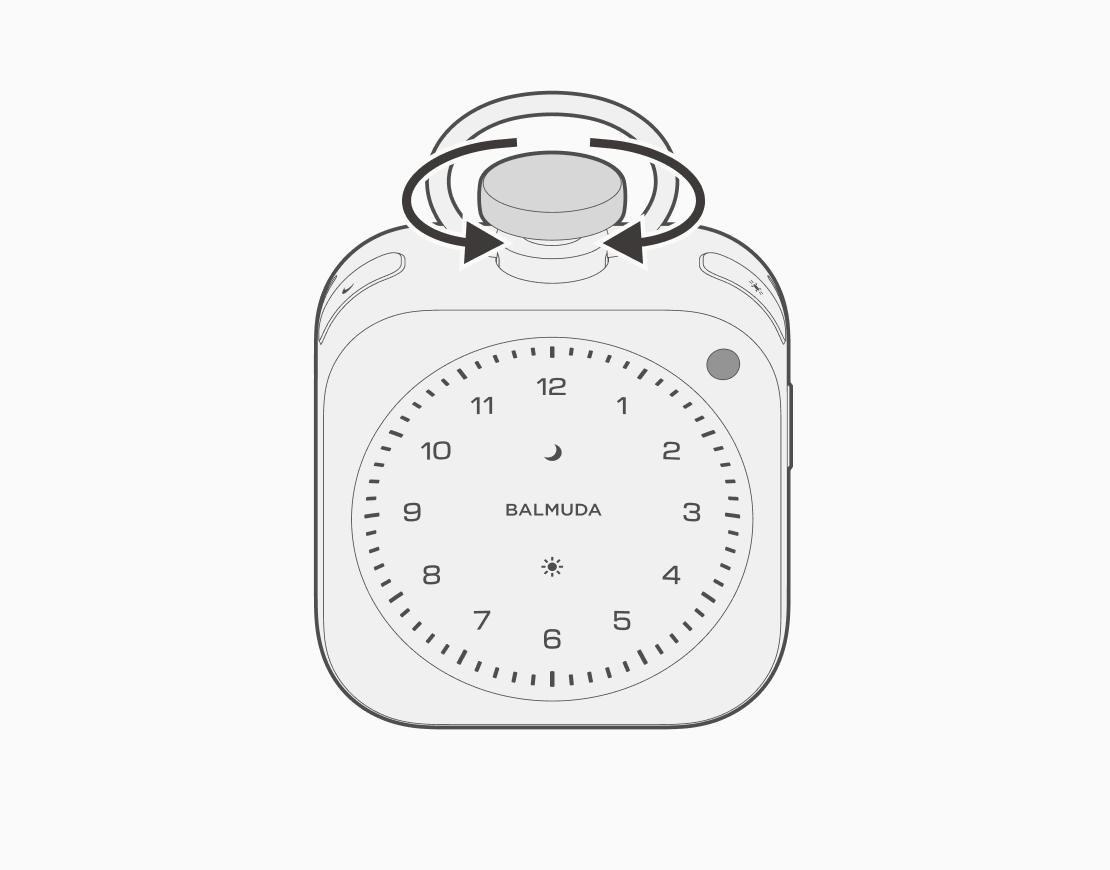
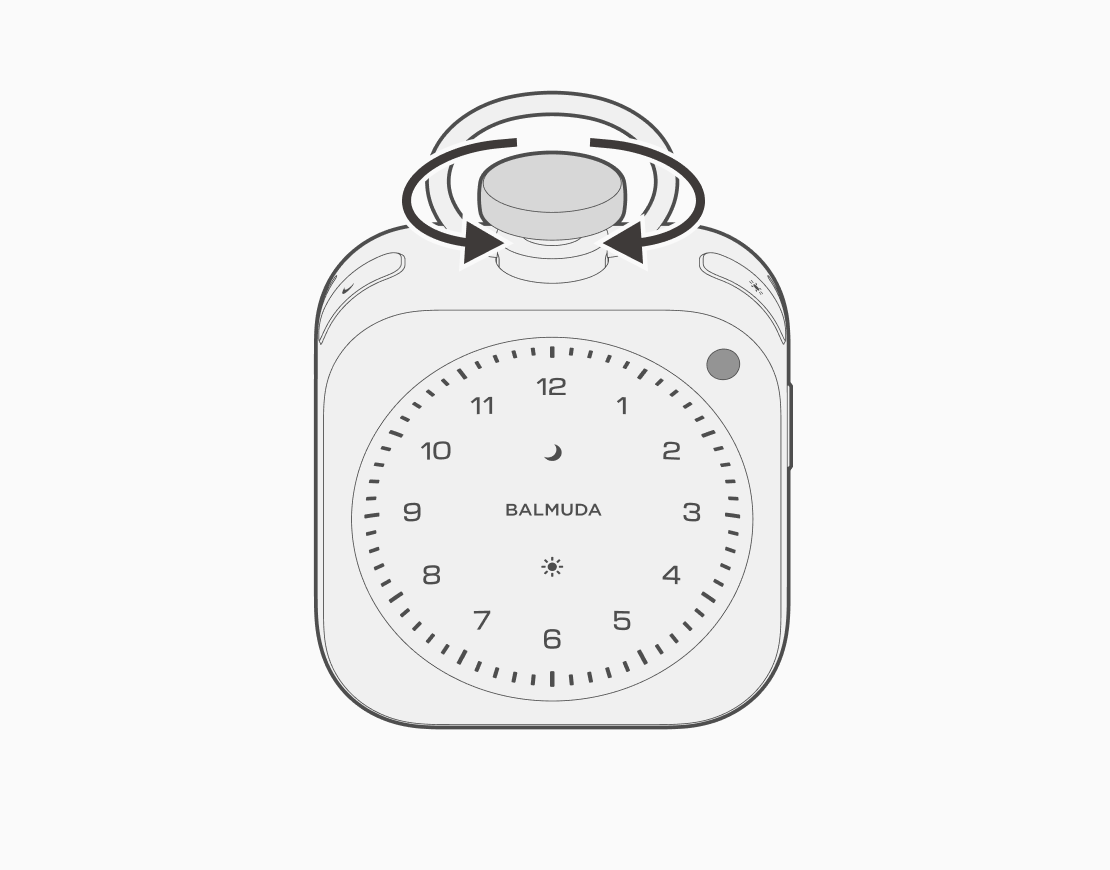
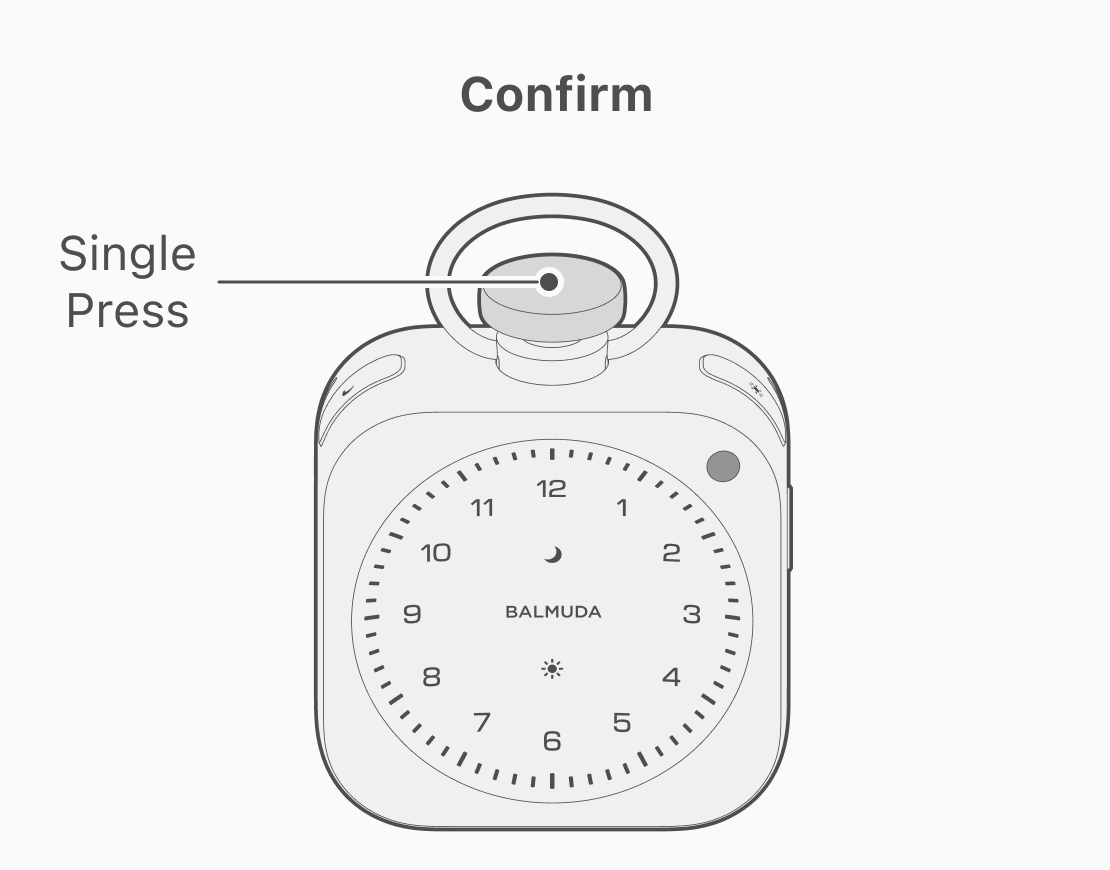
Turn the Crown to select the hour, then press the Crown to confirm it.
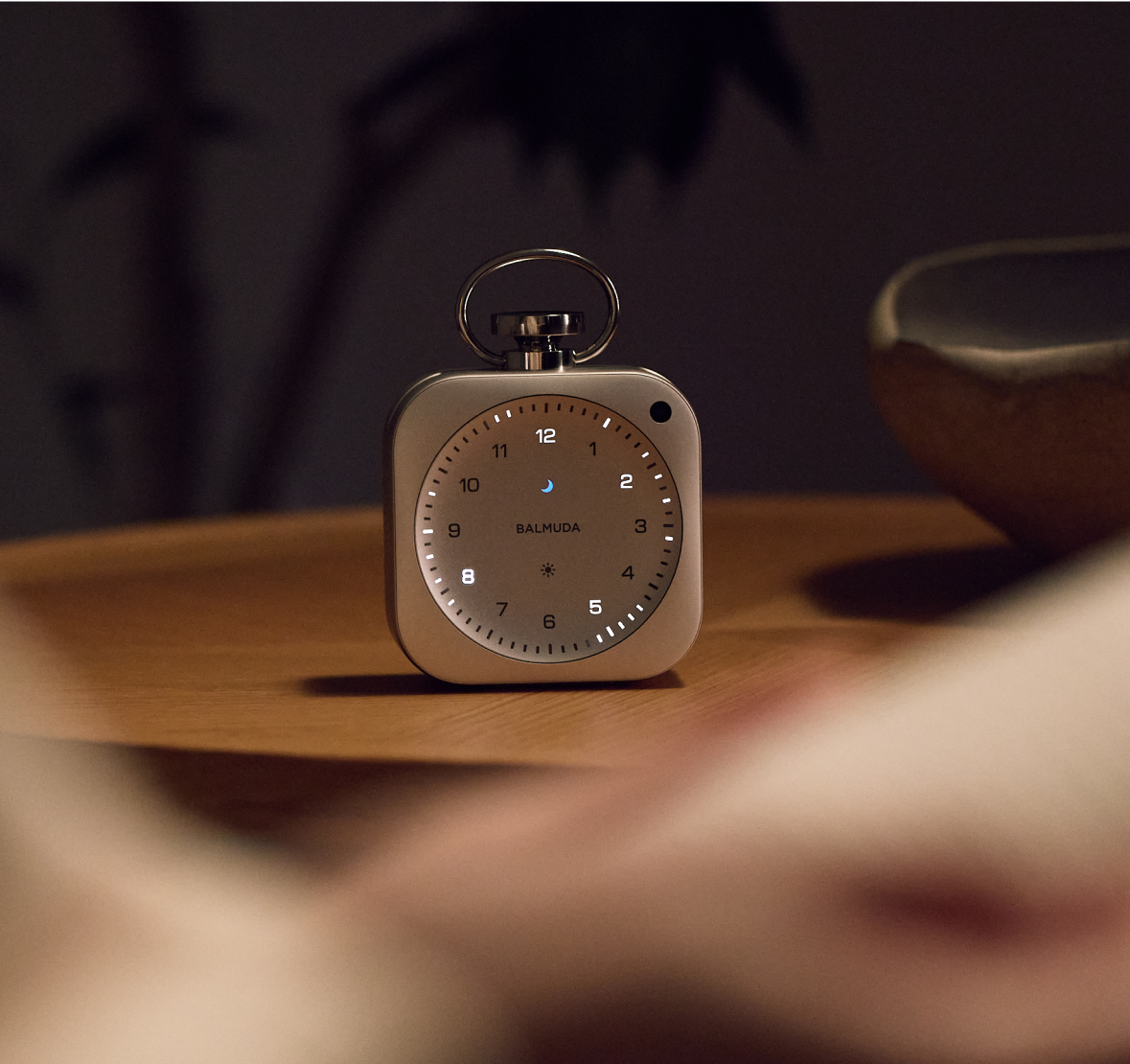
For AM, only the selected number blinks and the other numbers are off.
For PM, only the selected number blinks and all other numbers are lit.
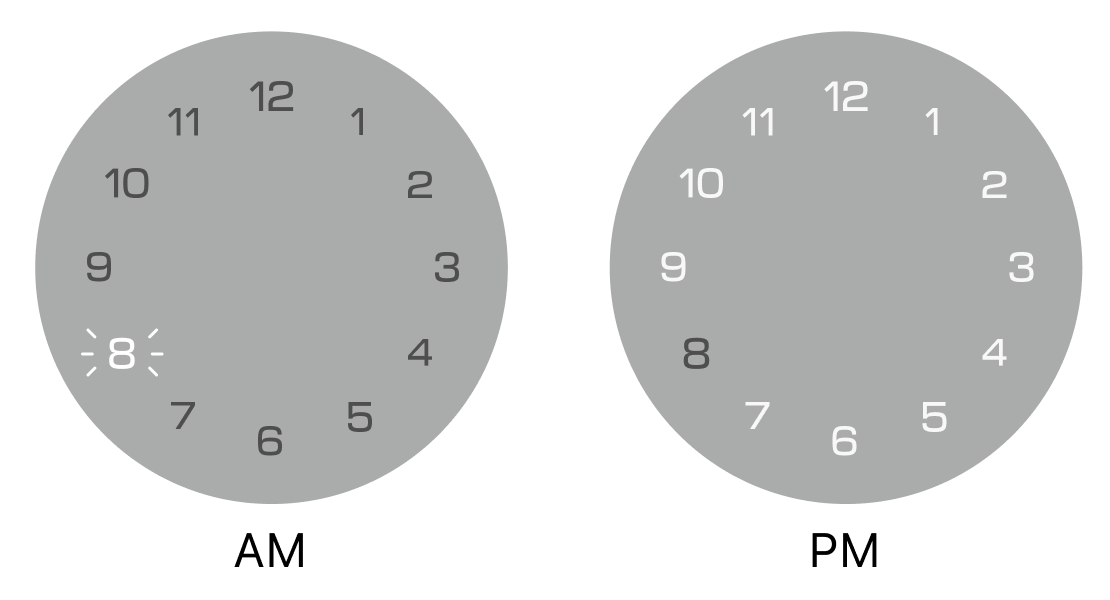
Set your bedtime using the 24-hour display.
This display appears only while setting the time. After setup is complete, the normal Light Hour display returns.
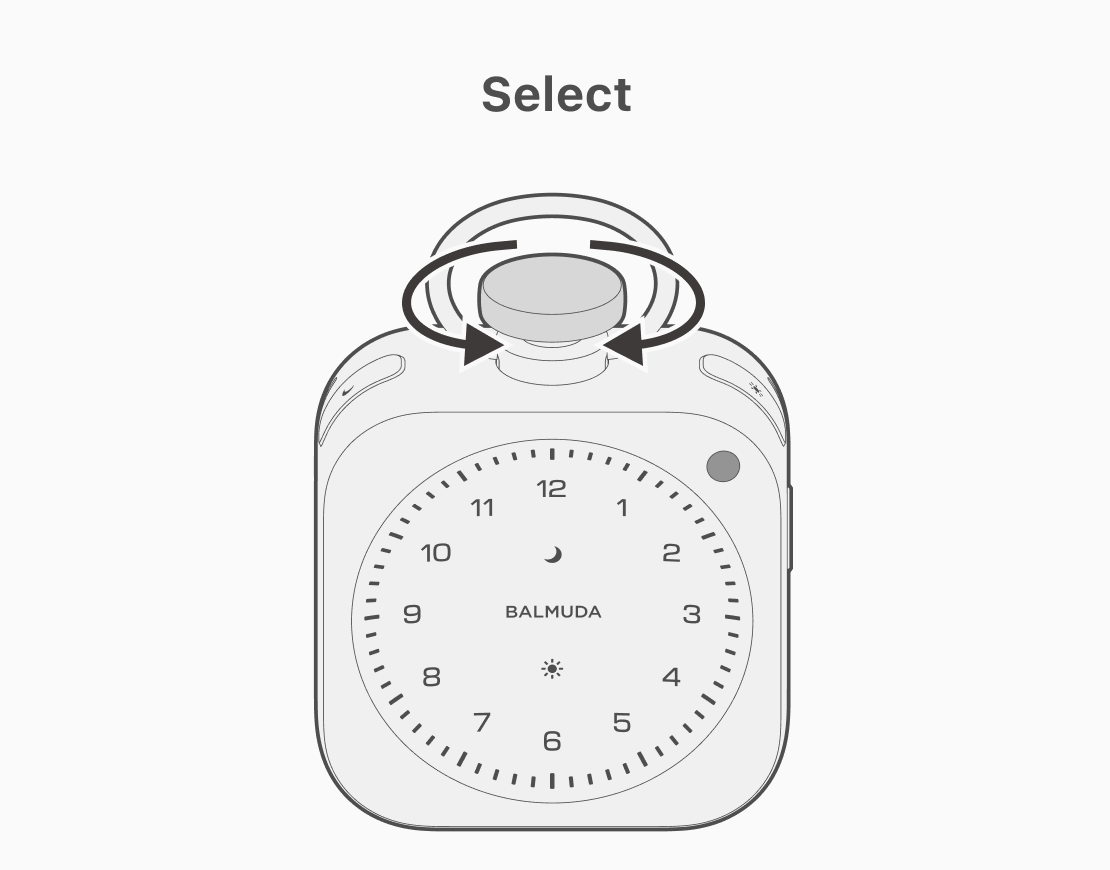
Turn the Crown to select the minutes for your bedtime. Press the Crown to set Night Routine. The Moon LED on the front of The Clock lights up and the display returns to its previous state.
To turn off Night Routine, press the Moon button twice while the clock or Relax Time is displayed. The Moon LED turns off.
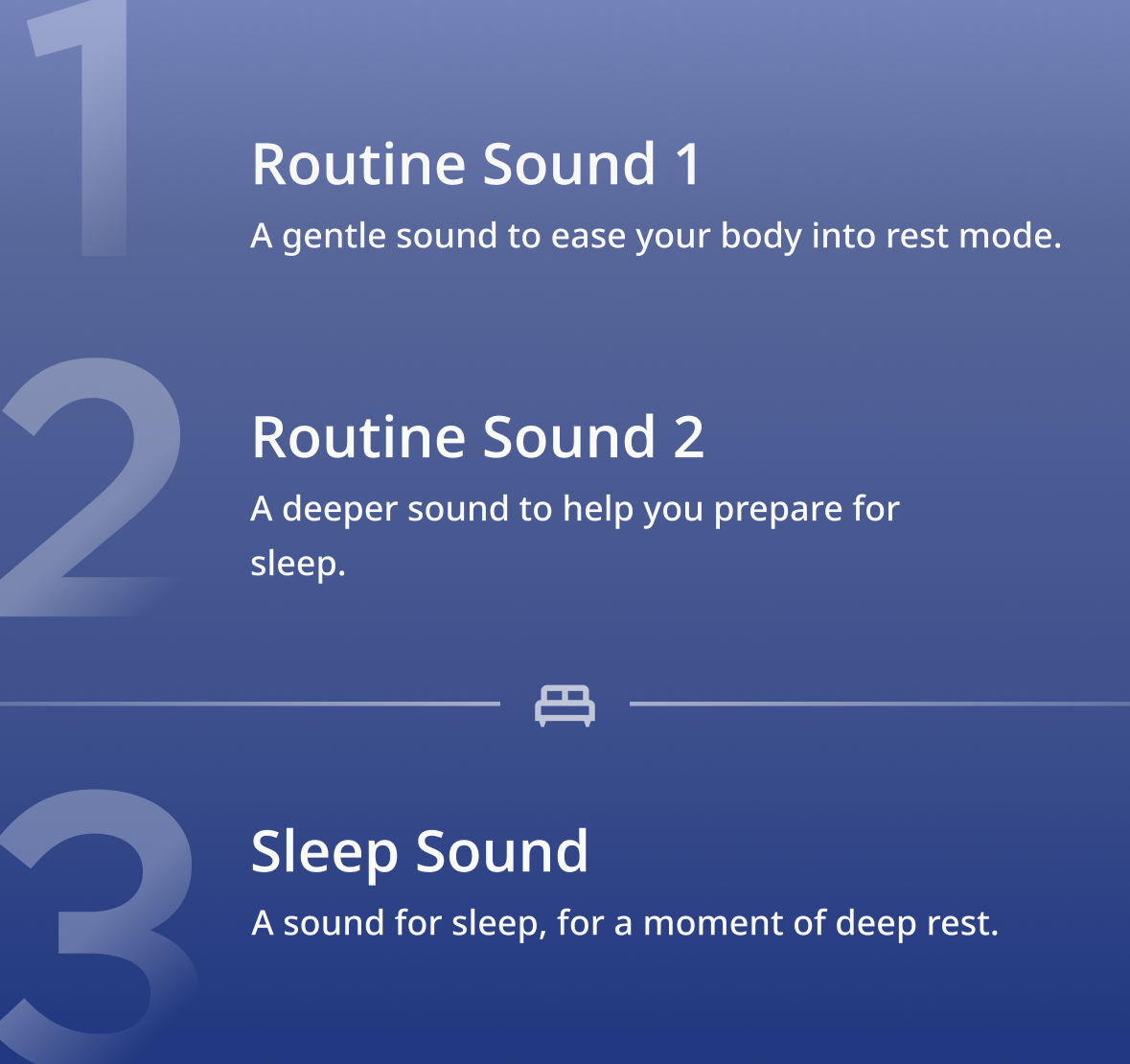
Press the Crown twice during playback to skip the current sound phase.
Example: Pressing the Crown twice during Routine Sound 1 moves to the Routine Sound 2 phase and starts Routine Sound 2.
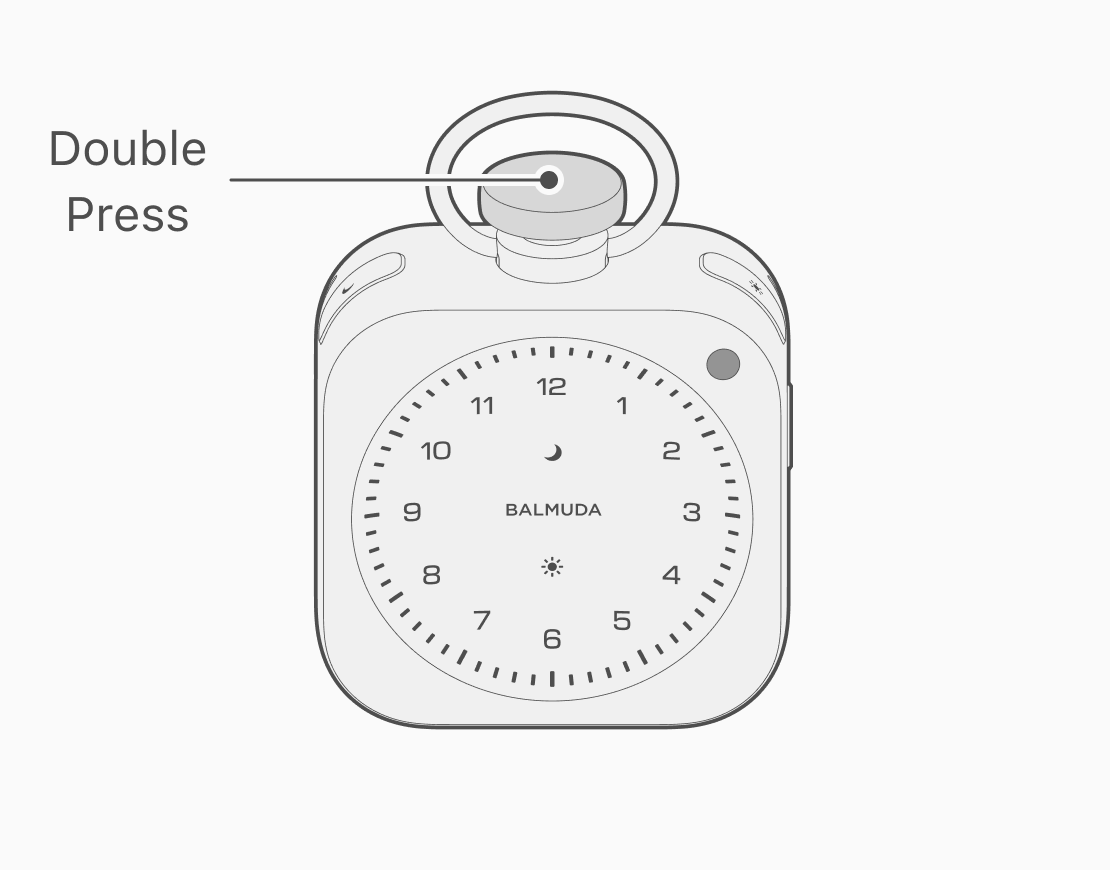
Your bedtime moves earlier by the amount of time skipped.
Changes to bedtime, playback start time, and playback end time caused by skipping are not reflected in the app.
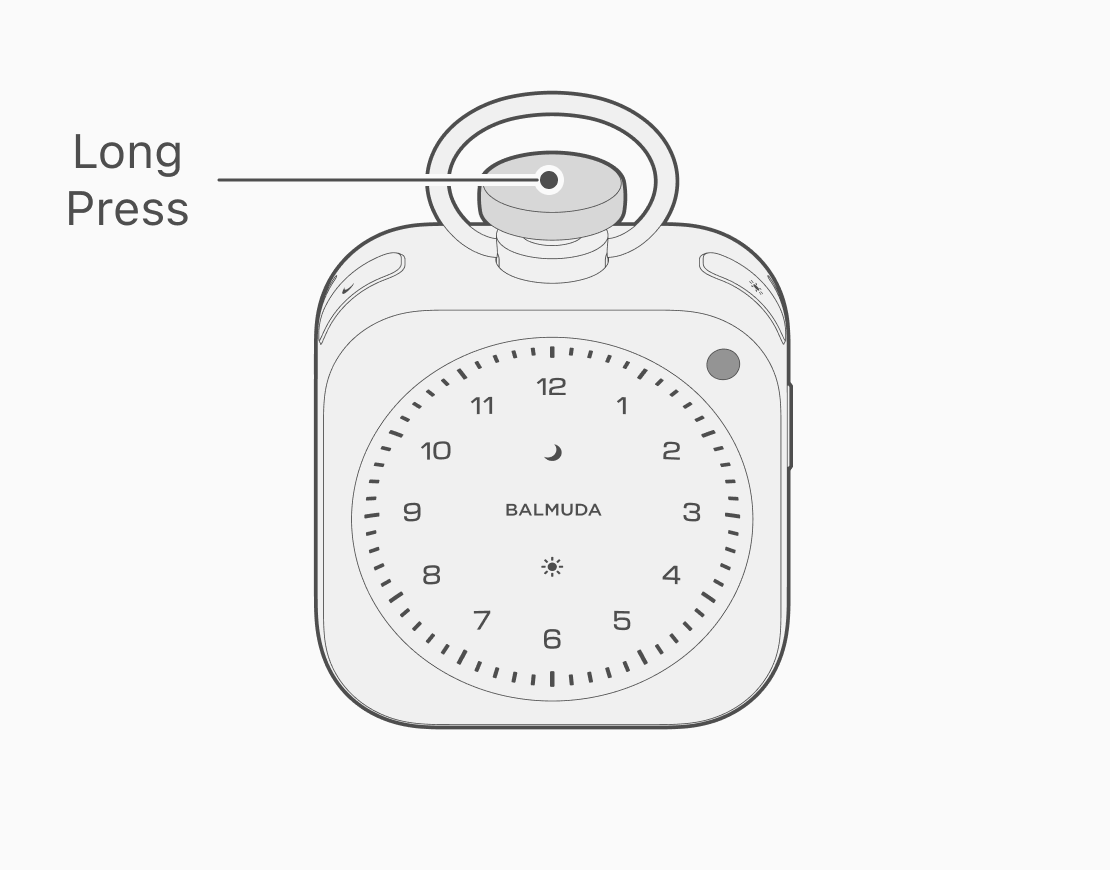
Sleep Sound cannot be skipped. To end Night Routine, follow the steps below.
Press and hold the Crown during playback to end Night Routine.
During Night Routine playback, turn the Crown clockwise to increase the volume or counterclockwise to decrease it.