

Setting the Time from the App
Setting the time from the App
When you pair with the App, in addition to manual setting on the main unit, you can sync with your smartphone’s Time zone or specify any Time zone in the App. It also periodically retrieves the correct time (UTC time) from the Internet.
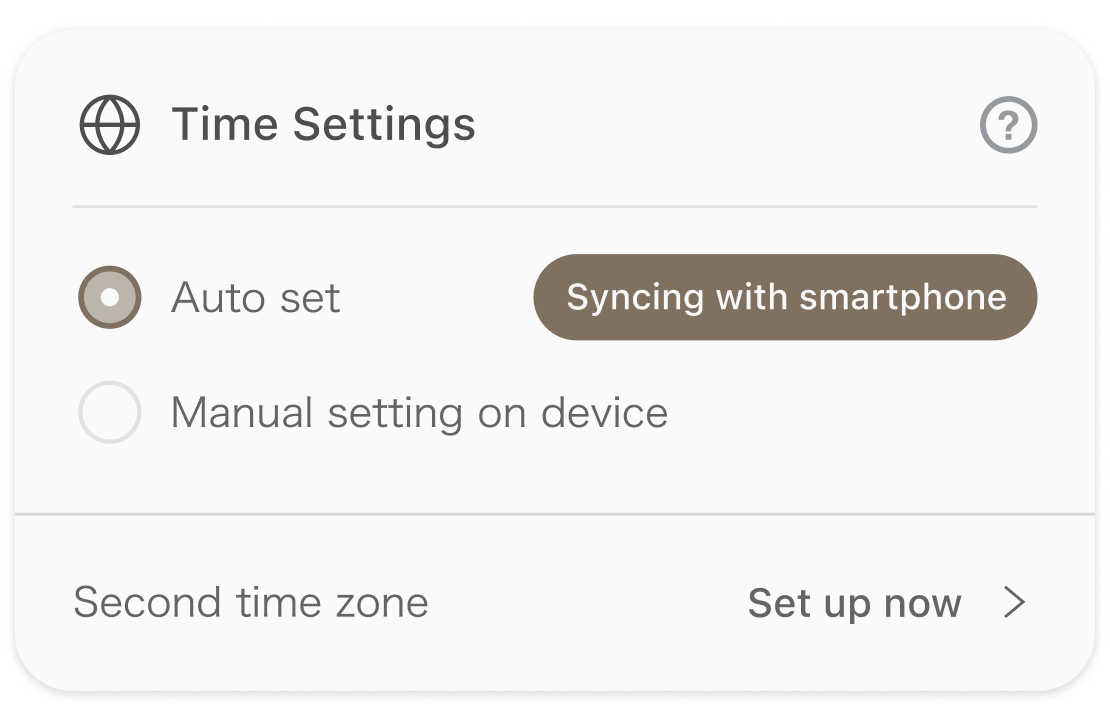
*Immediately after pairing, “Syncing with smartphone” will be shown as selected in the App’s “Time setting”.
Synchronizing with smartphone time
If you sync with your smartphone’s time, even when the Time zone changes due to overseas travel or business trips, you can always display the local time of the same region as your smartphone.
Select “Sync with smartphone”.
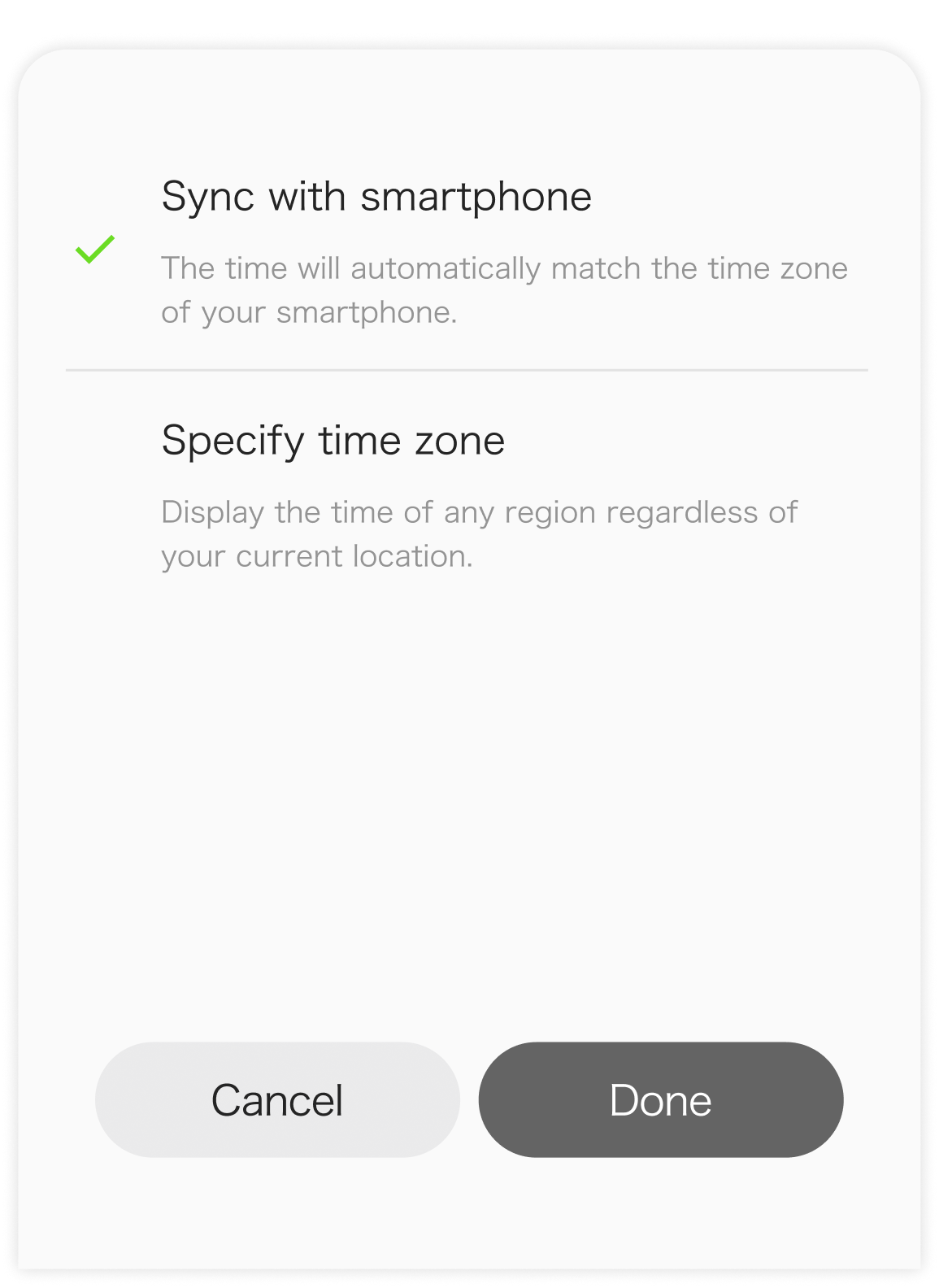
Tap “Done”.
Time zone
Separately from your smartphone’s time, you can have The Clock display the time for any Time zone.
In the App’s “Time setting”, select “Set automatically”.
If you select “Set automatically”, the time set on the main unit will be cleared.
Select “Specify time zone”, then tap “Time zone”.
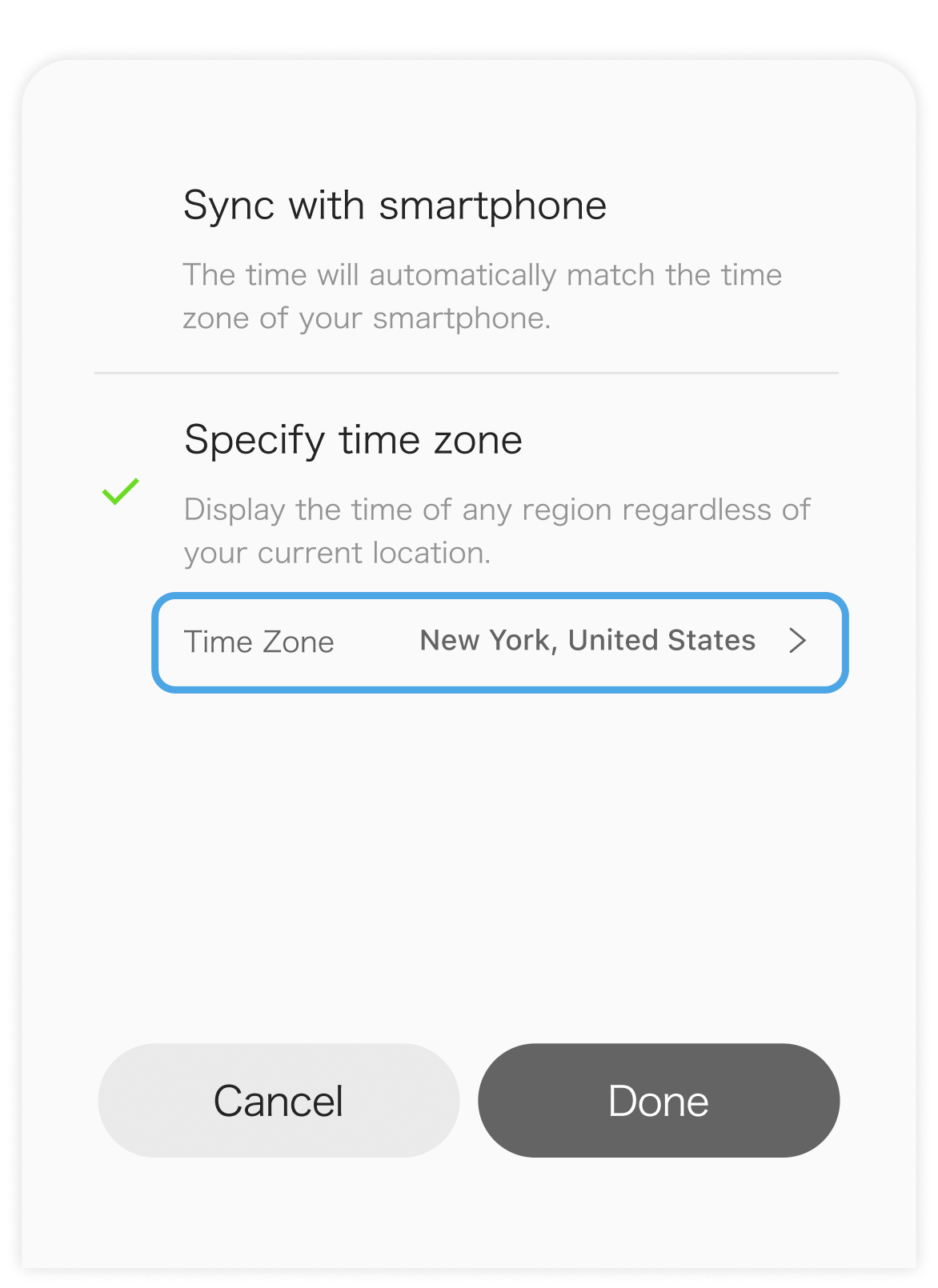
Select a Time zone.
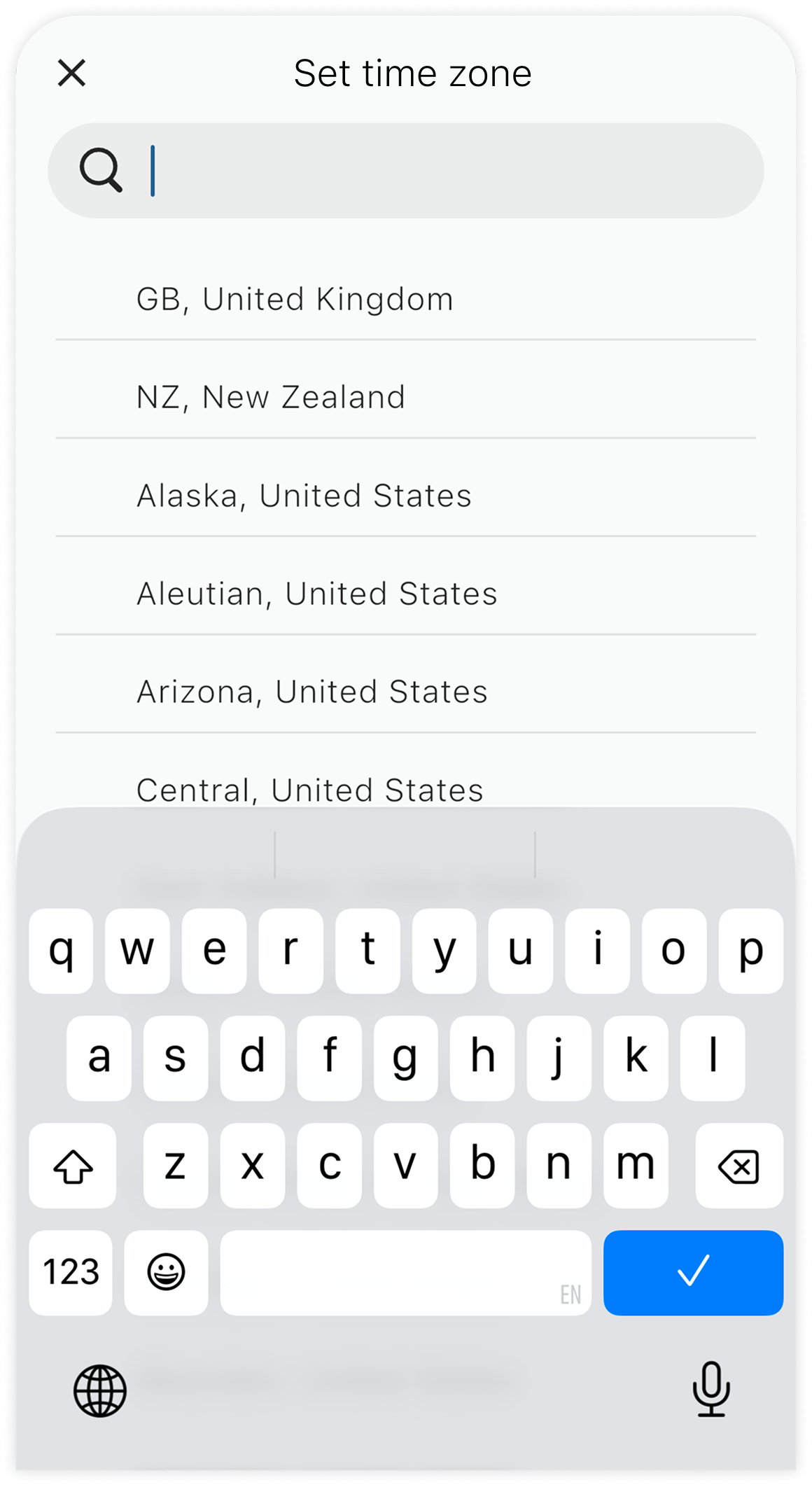
Follow the dialog to complete the settings.
Manually configuring settings on the main unit
Selecting “Manually configure settings on the main unit” allows you to adjust to any time you like. This can be used, for example, when you want to set it 5 minutes ahead of the local time.
When you pair The Clock with BALMUDA Connect, it periodically obtains the correct time (UTC time) from the internet. The time adjusted on the main unit operates as an offset from UTC time. For example, if UTC time is 0:20 and Tokyo time is 9:20 (UTC+9 hours), and you set the main unit to 9:25, the main unit becomes “UTC+9 hours 5 minutes.”
In the App’s “Time setting,” select “Manually set on the main unit.”
Press and hold the Moon button, Sun button, and Crown on the main unit at the same time to enter Time setting mode.
In the order of “Hour” → “Minutes”, turn the Crown to select them, and press the Crown to confirm the settings.
Second Time Zone
You can set two types of Time zone: the main time zone and the second time zone. You can set the second time zone only from the App.
Set the Second Time Zone
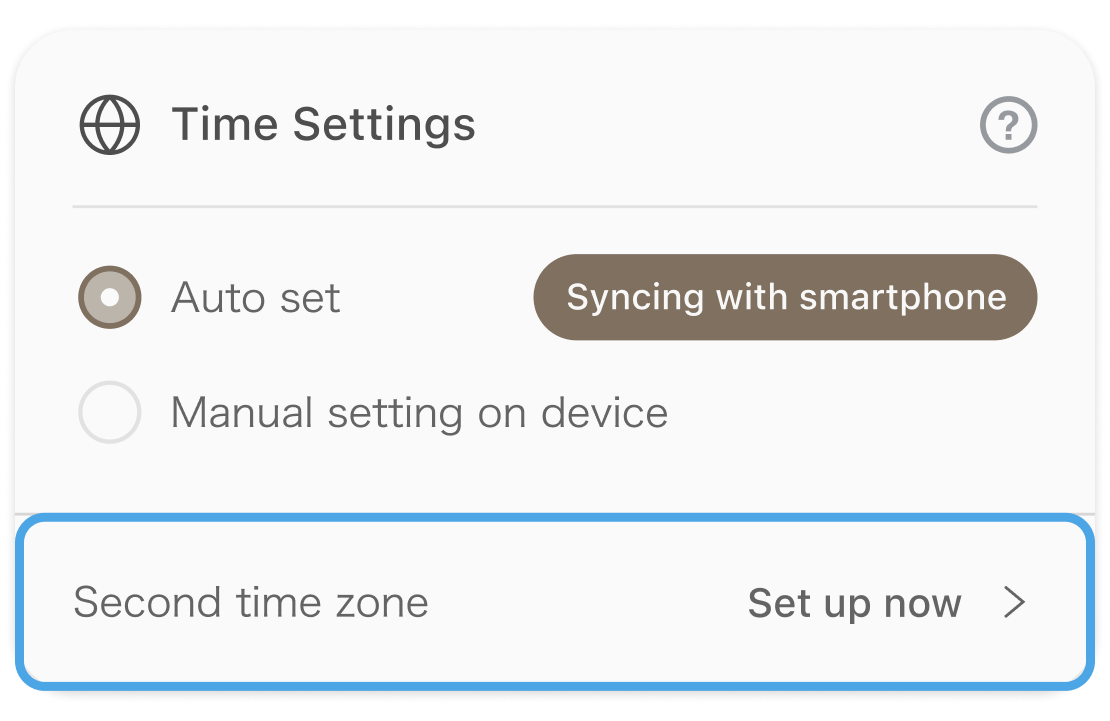
On the main screen, tap “Second Time Zone” in Time setting to go to the time zone selection screen.
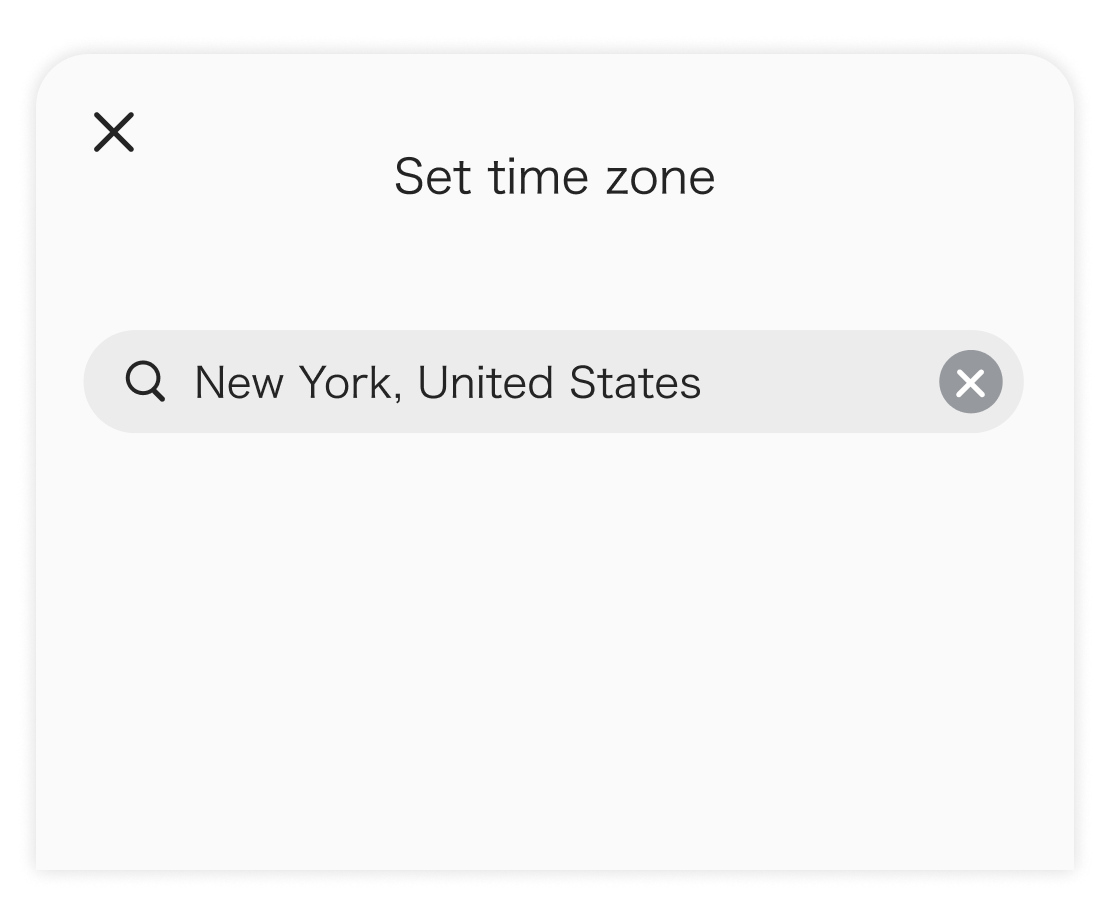
You can search for and set a time zone.
Checking the Second Time Zone
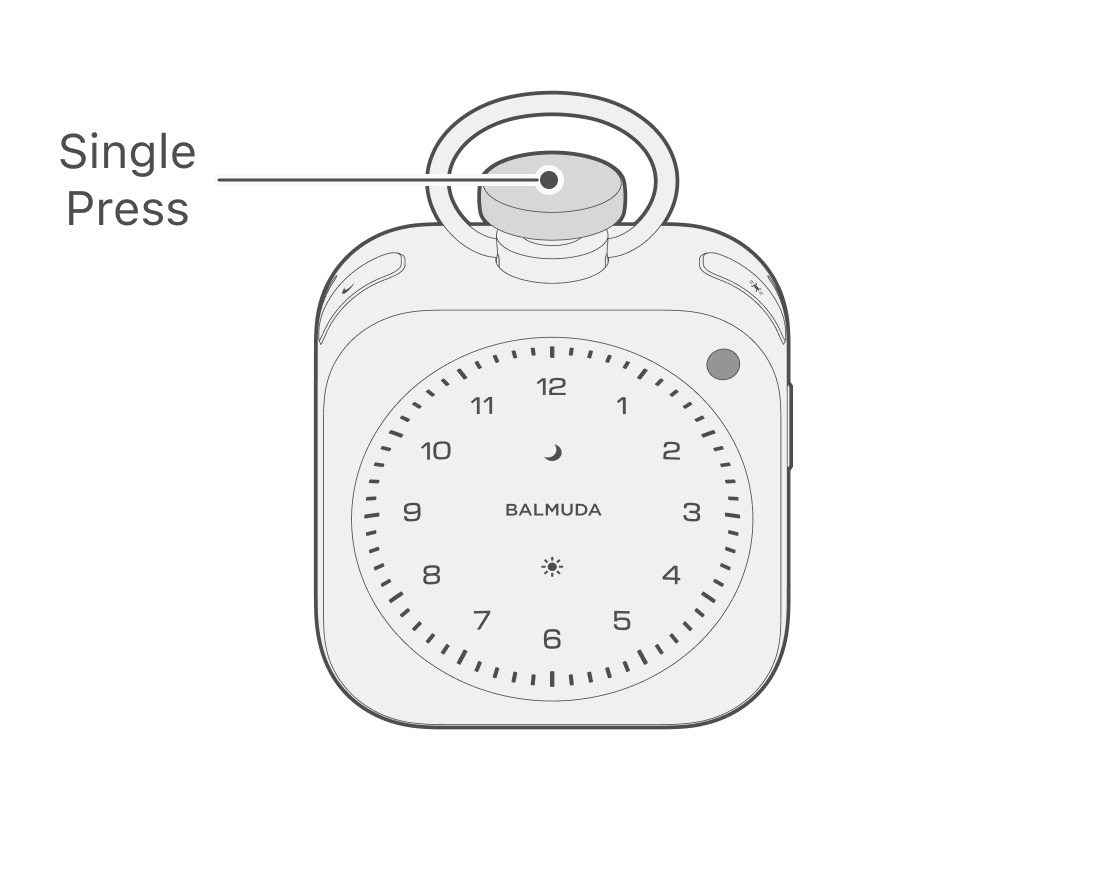
When the clock display is shown, press the Crown once to display the Second Time Zone. After 5 seconds, or if you press the Crown, it returns to the main time zone display.